Adding a Merchant Bank Account
A Partner can add a bank account on behalf of a merchant before the merchant is KYB approved.
You must have Owner or Administrator privileges to add a bank account.
Sign in as described in Signing In To the Partner Portal and navigate to the Merchants tab. The Merchants page appears.
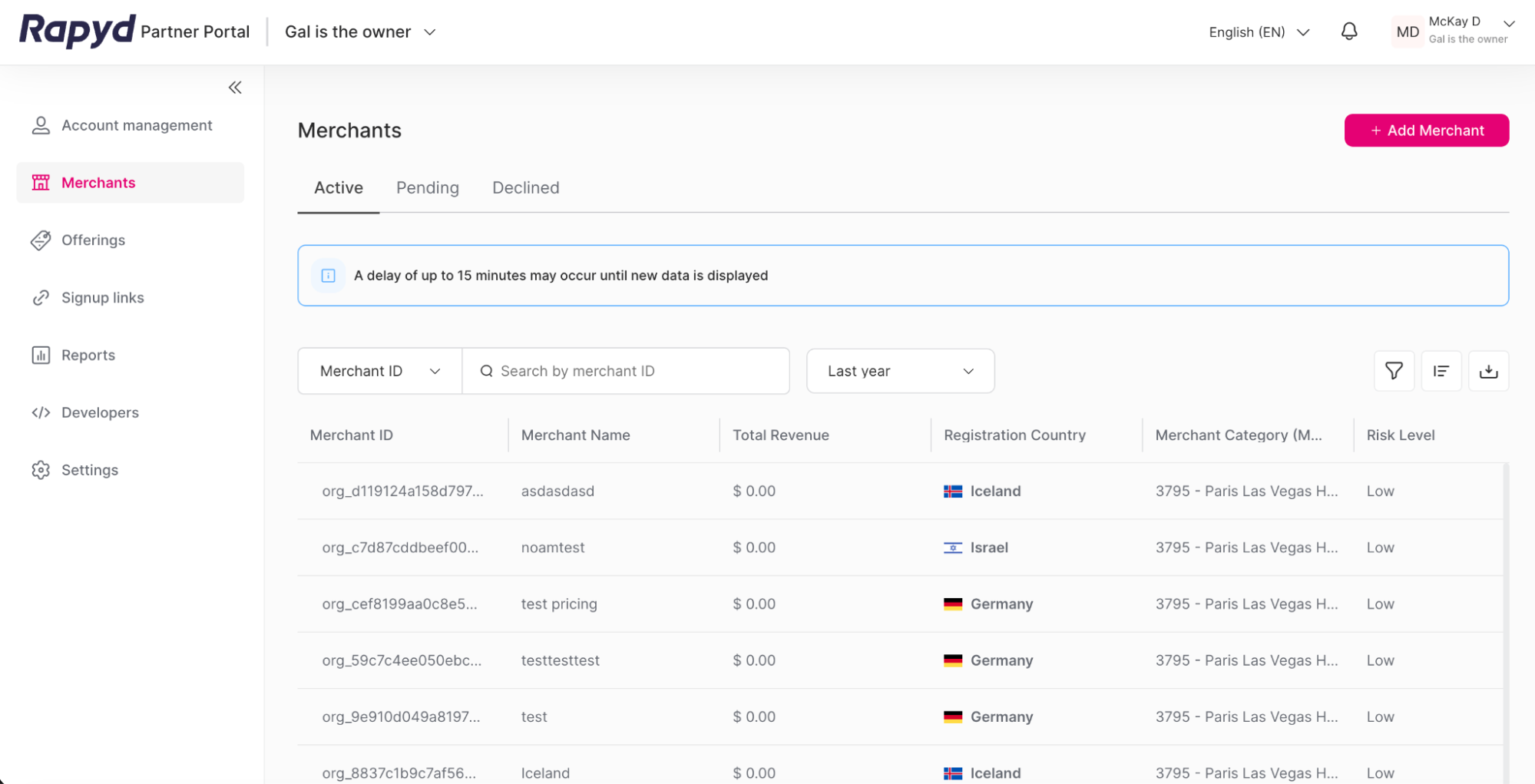
Click on the Pending tab on the Merchants page above the table.
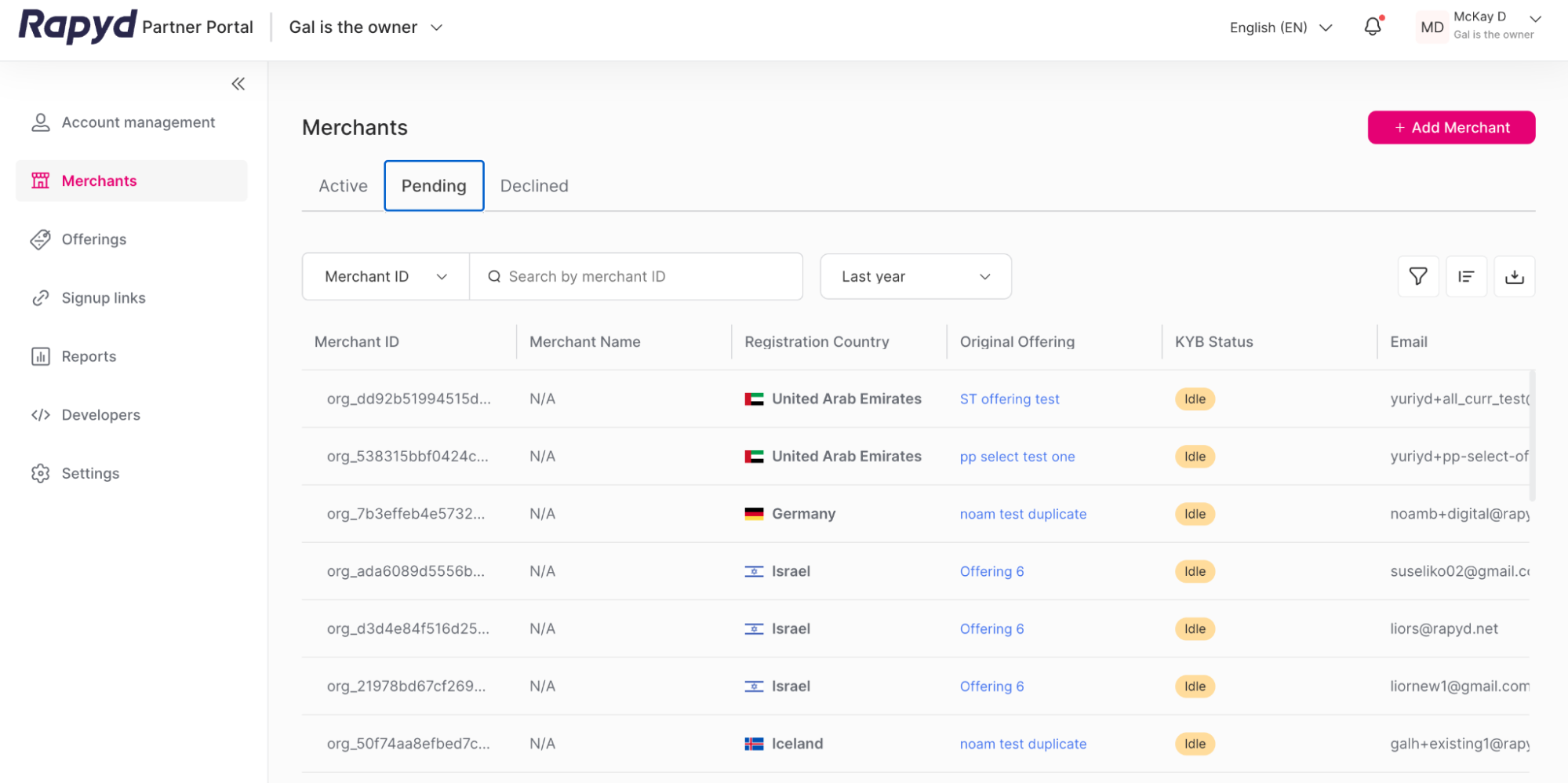
Merchant KYB Status
The merchant must have a KYB status of Idle or In Review for the Partner to add a merchant bank account in the Partner Portal. Once a merchant is KYB approved, they will be able to add a bank account from their Client Portal account.
Click the row of the merchant you would like to view.
The Merchant Details page appears.
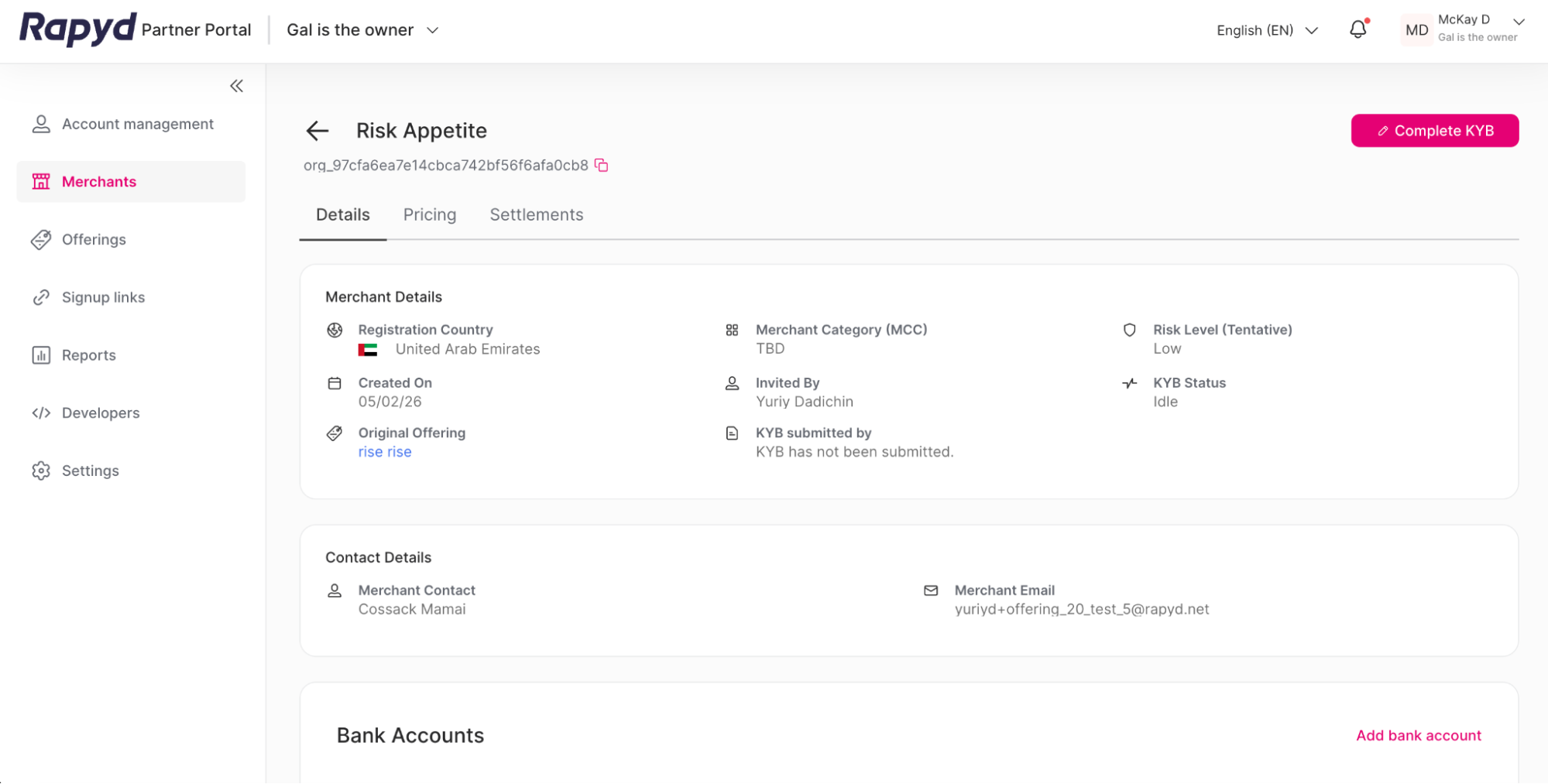
Scroll down to the Bank Accounts subsection.
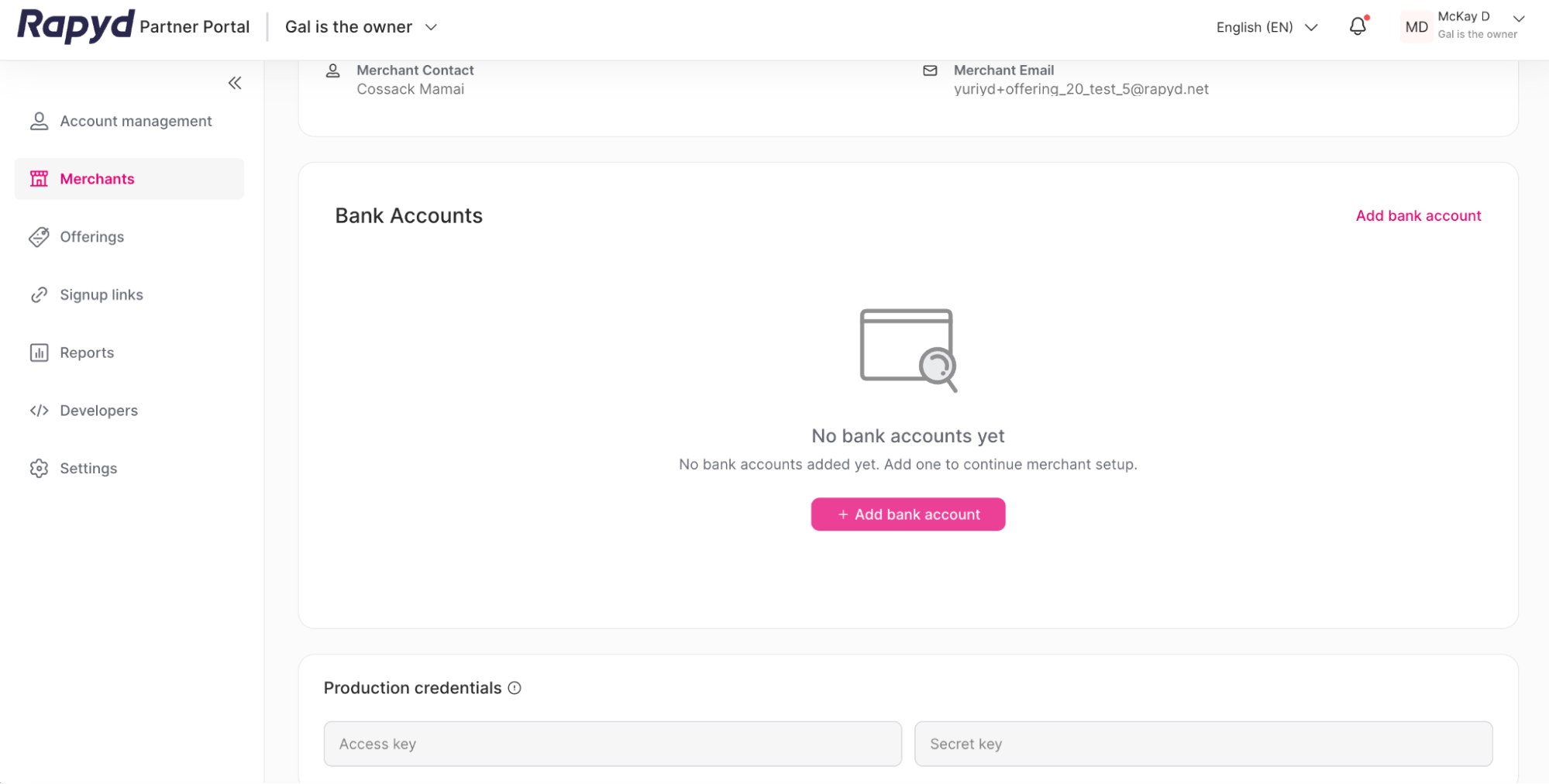
Click the + Add bank account button.
The Add bank account window appears.
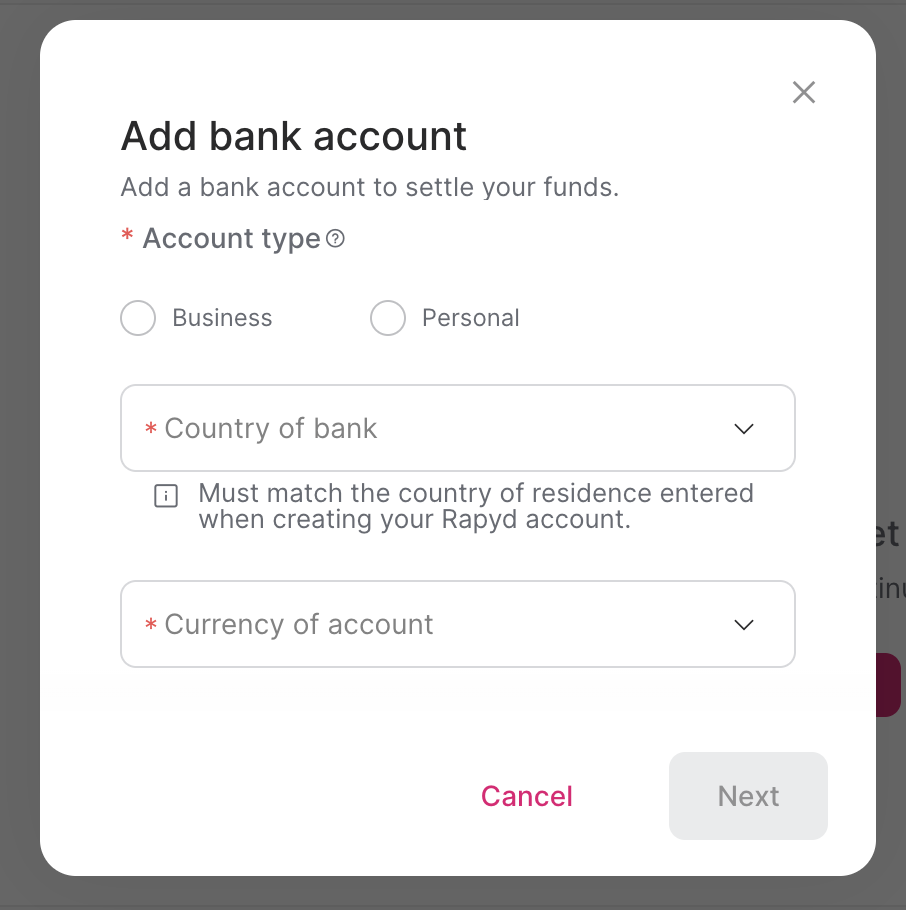
Fill out the following required fields:
Account type - Select Business or Personal.
Country of bank - Select the country where the bank is located.
Currency of account - Select the settlement currency.
Note: The currency may already be pre-selected.
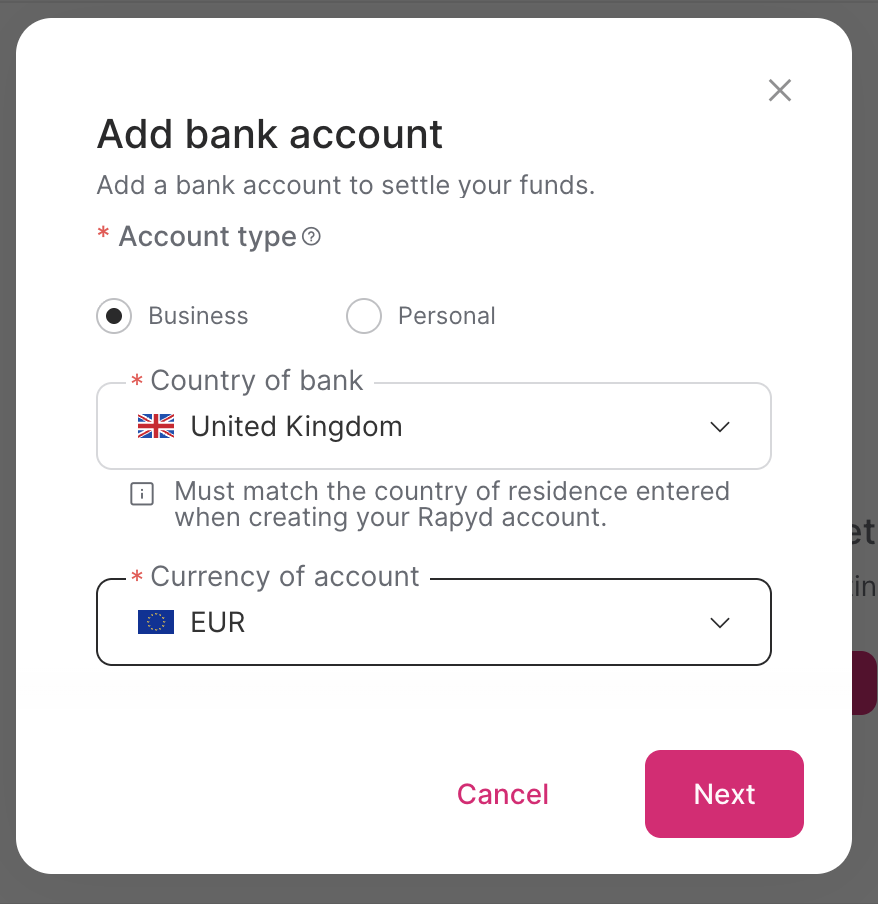
Click Next.
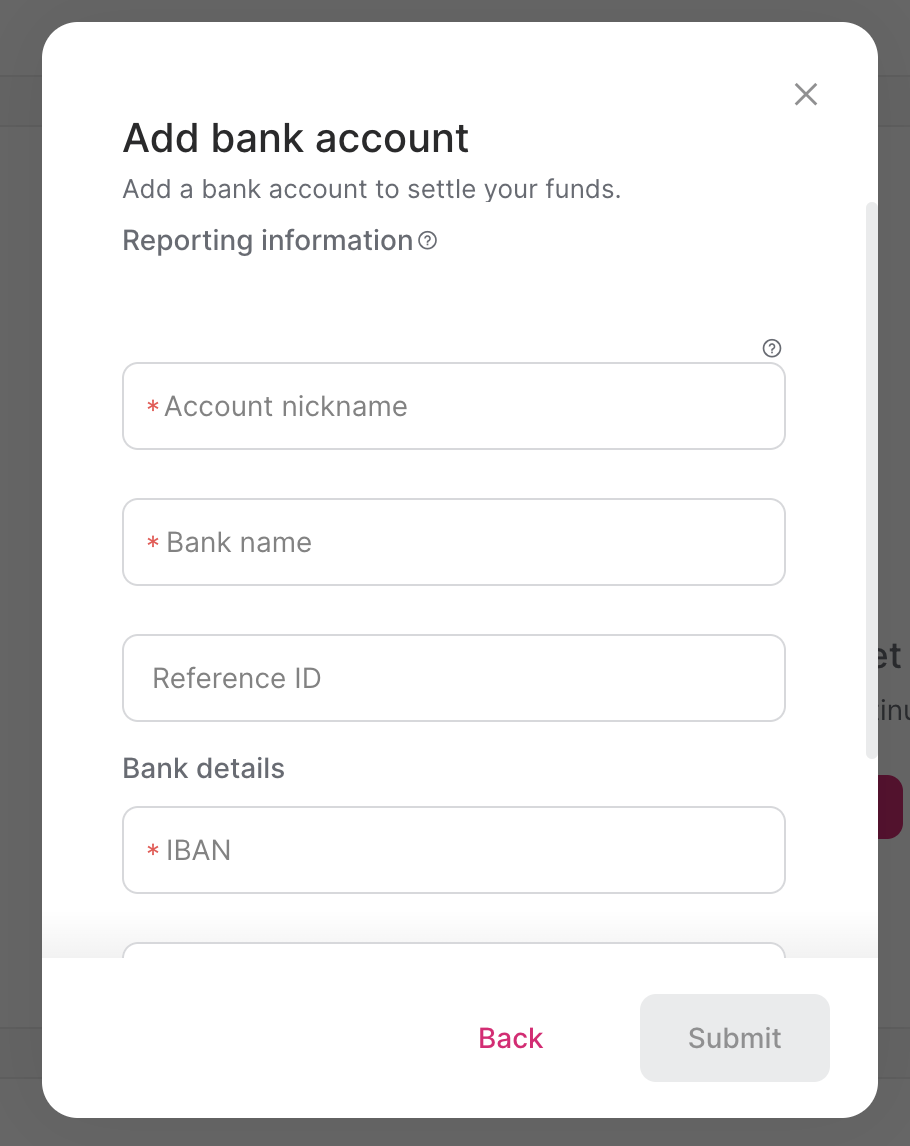
Enter the following required fields:
Account nickname - A unique internal alias.
Bank name - The bank’s name.
IBAN - International Bank Account Number.
BIC SWIFT Code - The Business Identifier Code associated with the bank.
Sort Code - A routing number used for UK bank accounts.
Beneficiary Name - The name of the beneficiary associated with the account.
Note: The Beneficiary Name must match the name of the Bank Account Holder in order to settle funds.
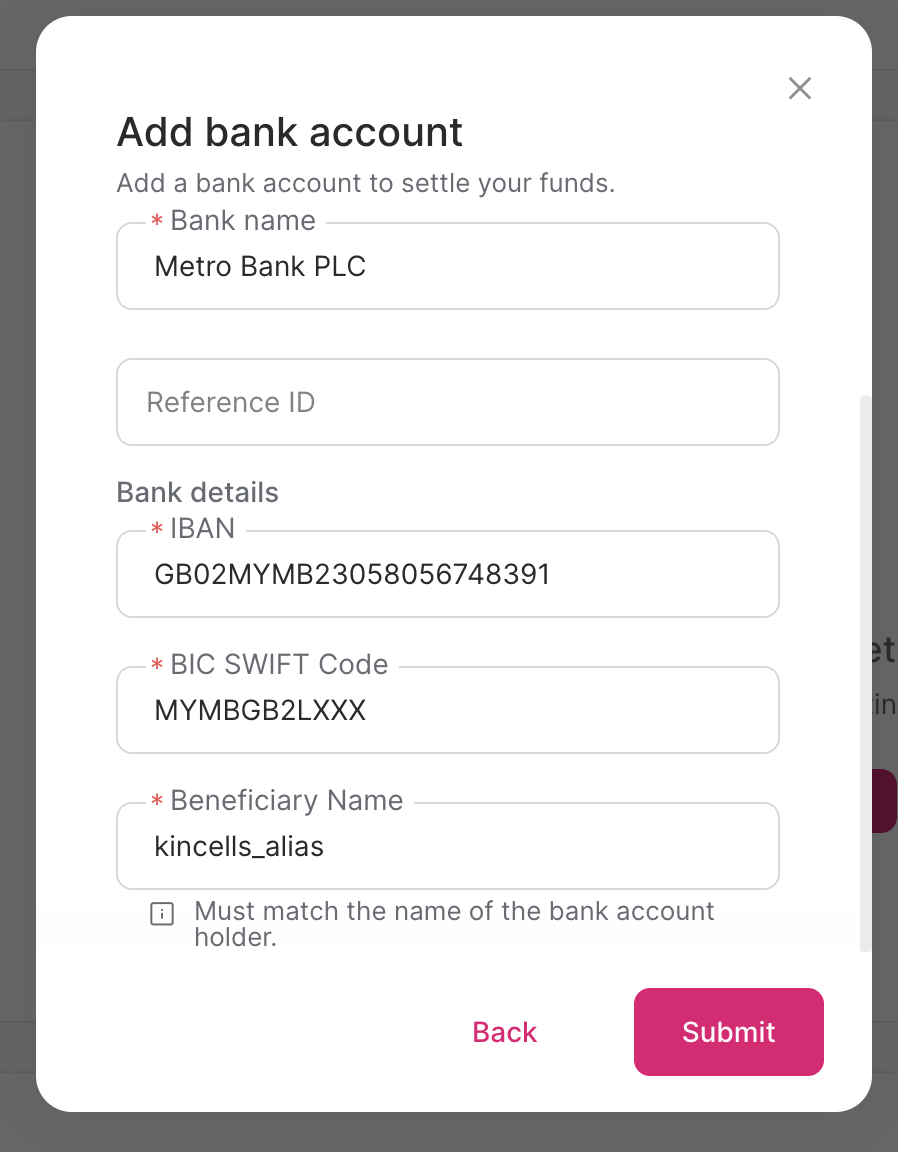
Click Submit.
You need to verify your merchant’s bank account information when linking their bank account to Rapyd through the Partner Portal.
You can verify your bank account information using your bank statement with the following steps.
Note: The country of origin for your bank account must be a country that is not the UK.
After adding your bank account information, the Bank account added dialog box appears.
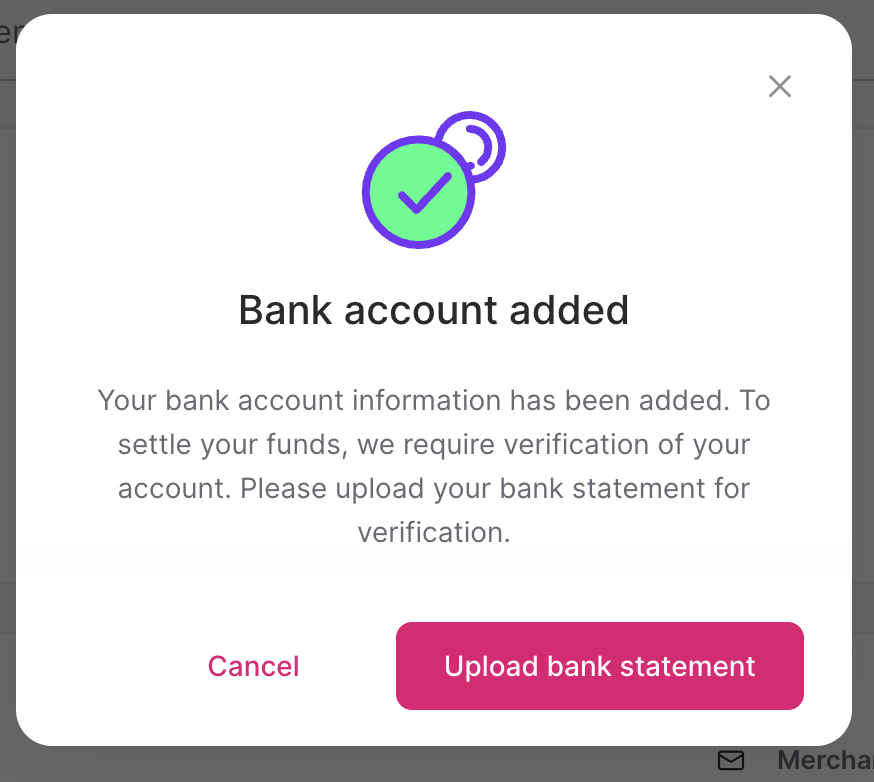
Click the Upload bank statement button.
The Upload bank statement dialog box appears.
Bank Account Settlements
Before we can settle your funds, our team will need to verify your bank account. Please upload your bank account statement.
Uploading your bank account statement is required for your bank account to be verified. The uploaded statement must match the details of the added bank account. The bank statement must be issued from 6 months ago or earlier. A bank statement issued after 6 months will not be approved. You will be able to settle funds once your bank account is verified.
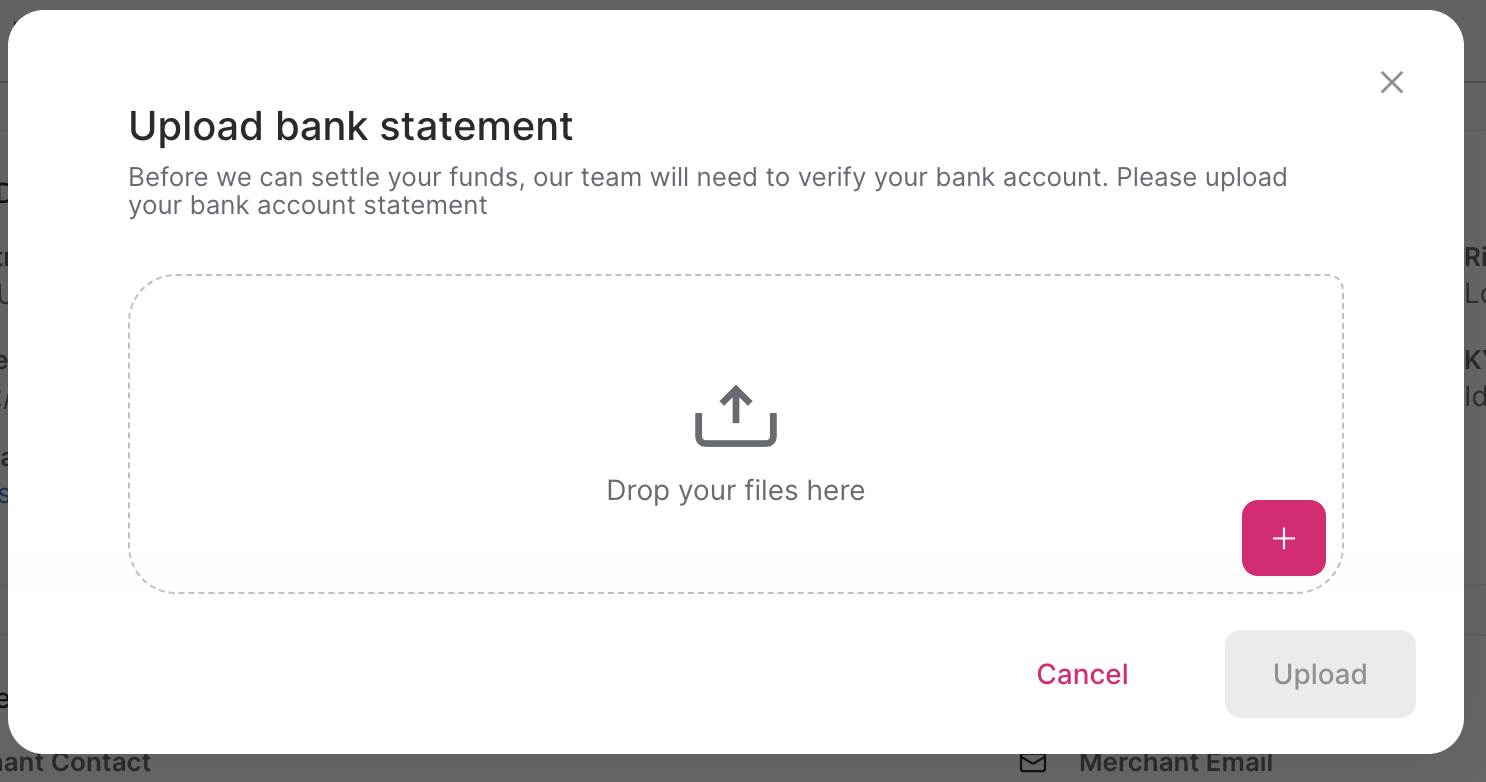
Add your bank statement file by either dragging the file, or clicking the + icon.
Click Upload.
Bank Account Verification Status
Rapyd will review the uploaded bank statement file. The bank account will have a status of Not Verified until the file is fully reviewed and approved.