Duplicate an Offering
You can duplicate an offering.
For a more detailed explanation of the offering settings and features, see Creating an Offering.
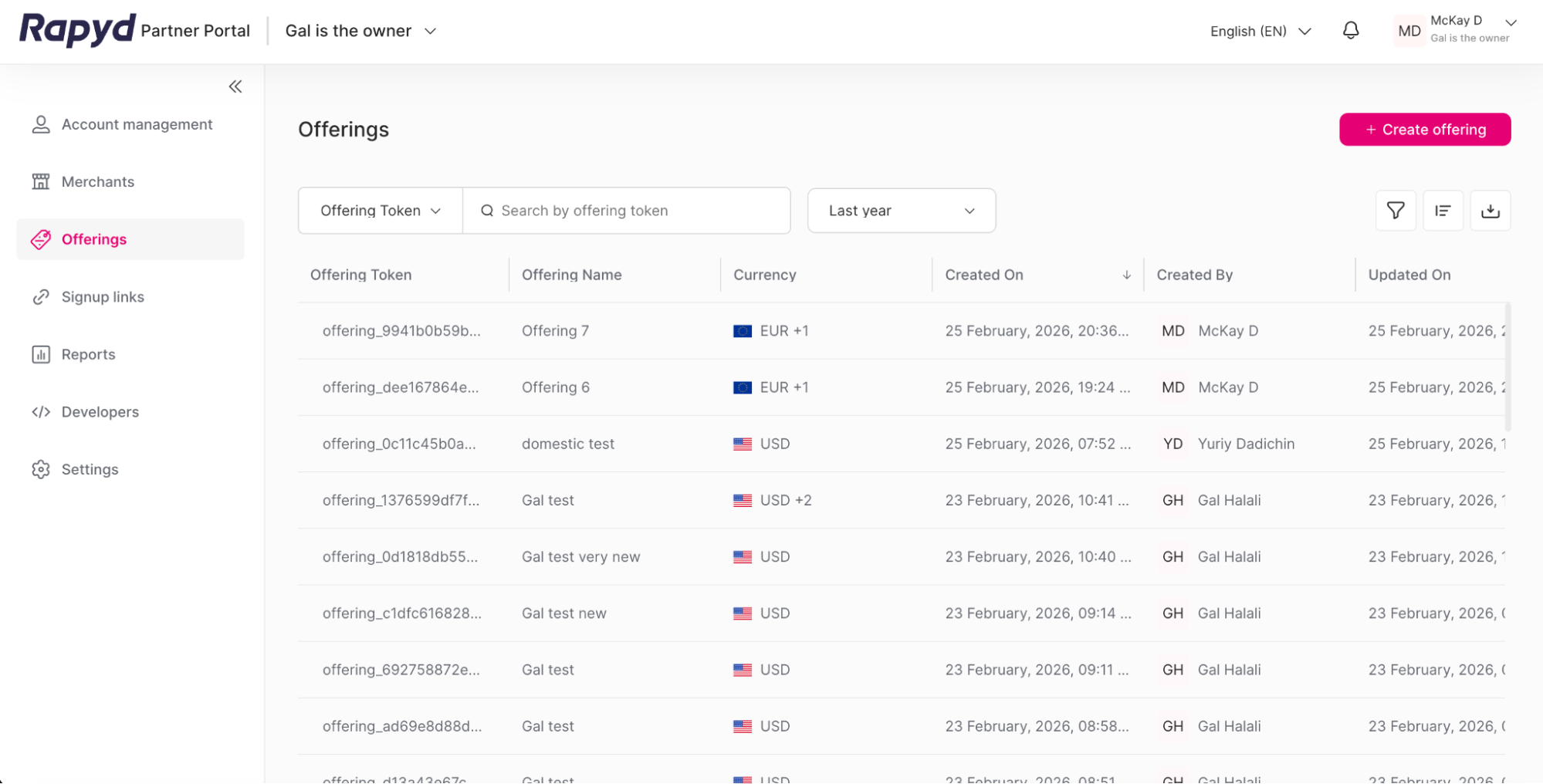
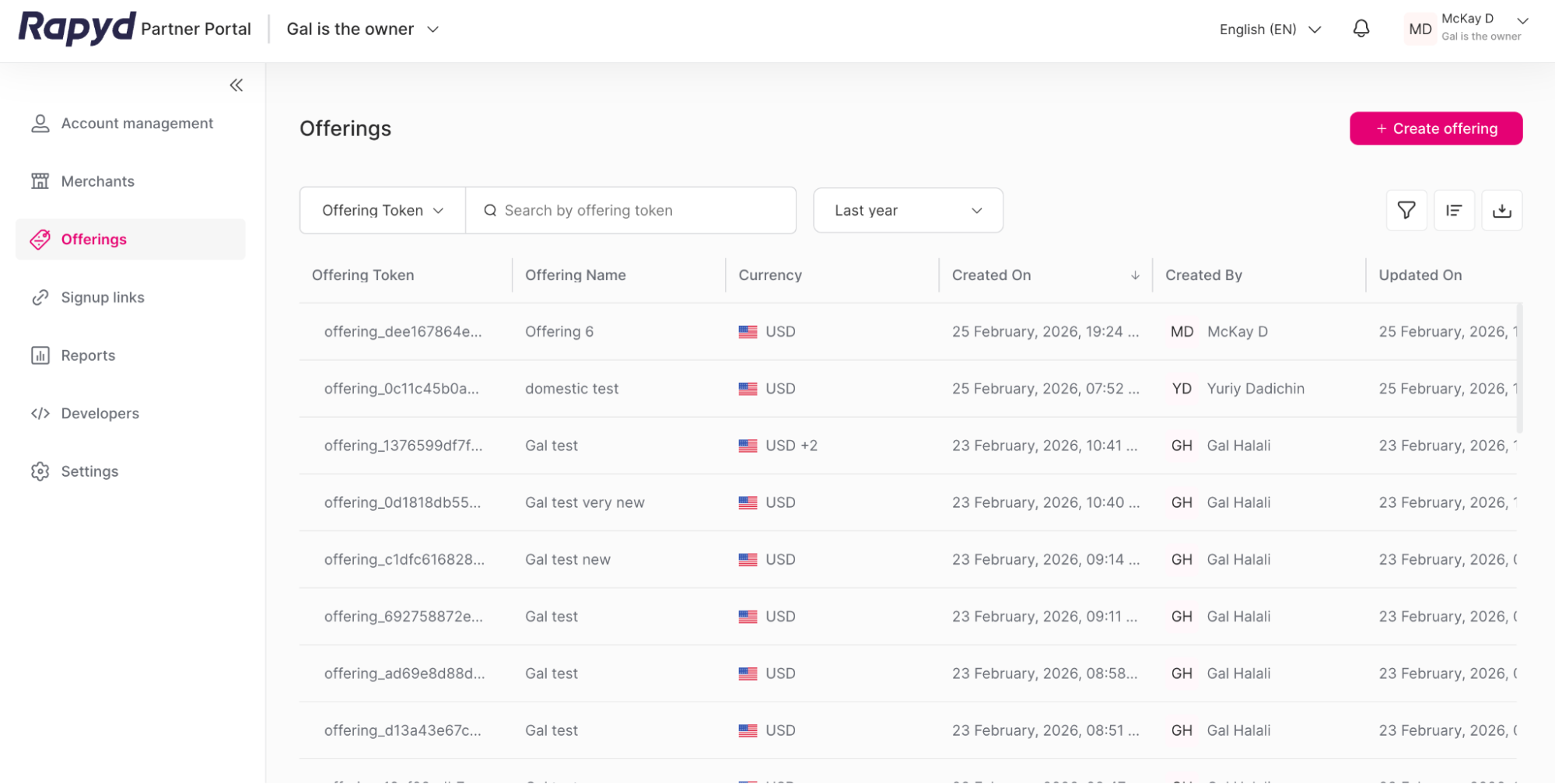
Sign in as described in Signing In To the Partner Portal and navigate to the Offerings tab.
The Offerings page appears.
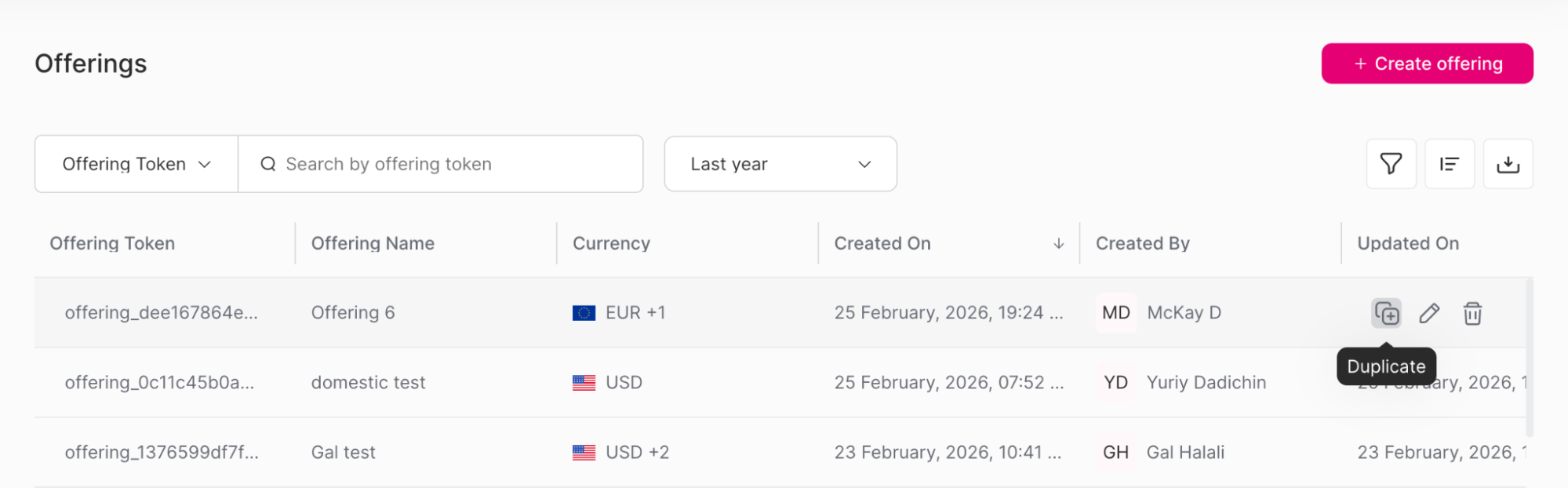
Navigate to the row of the offering that you want to view.
Click the Duplicate icon.
The Duplicate Offering page appears.
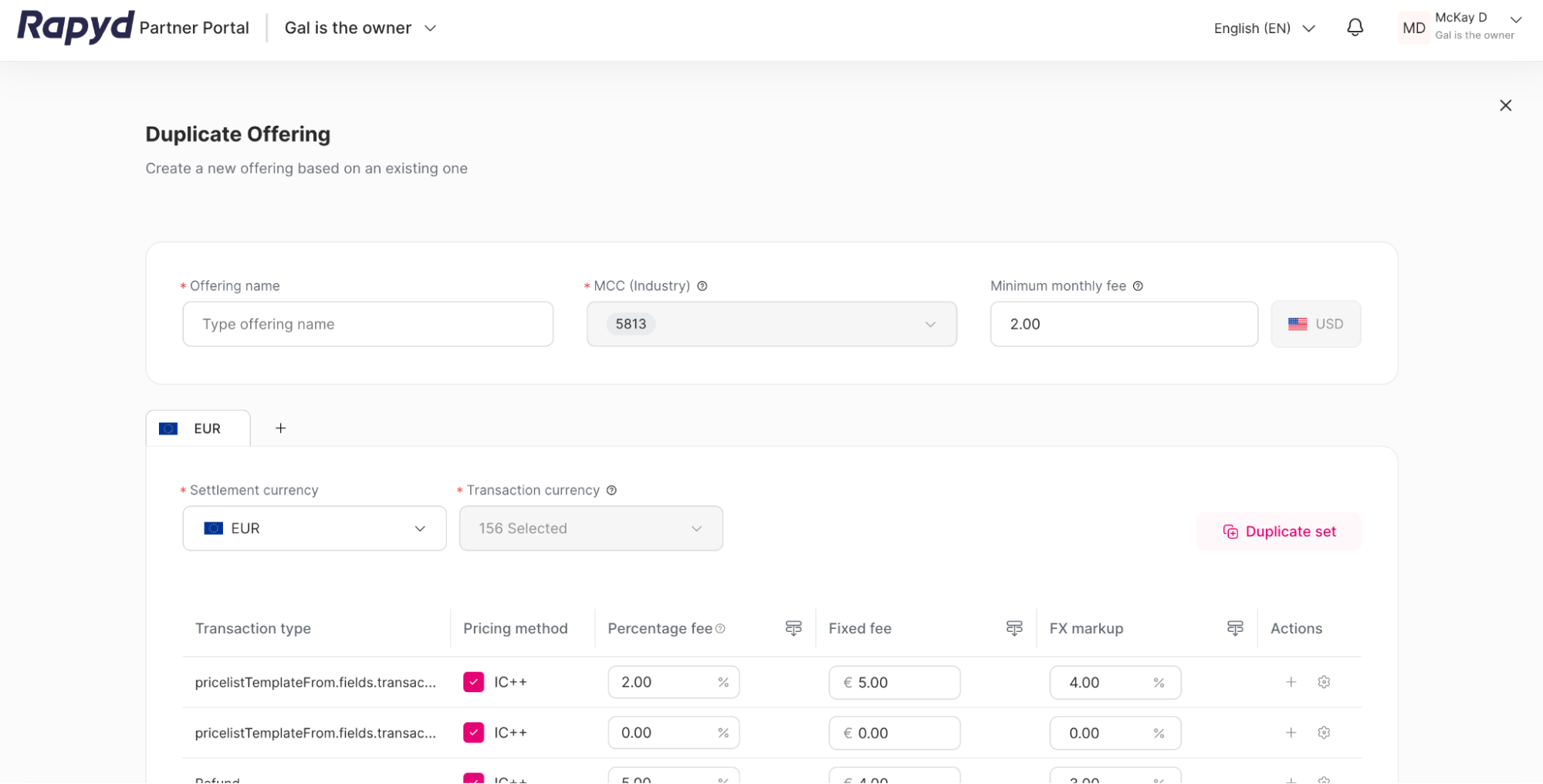
Enter the new offering name in the text box.
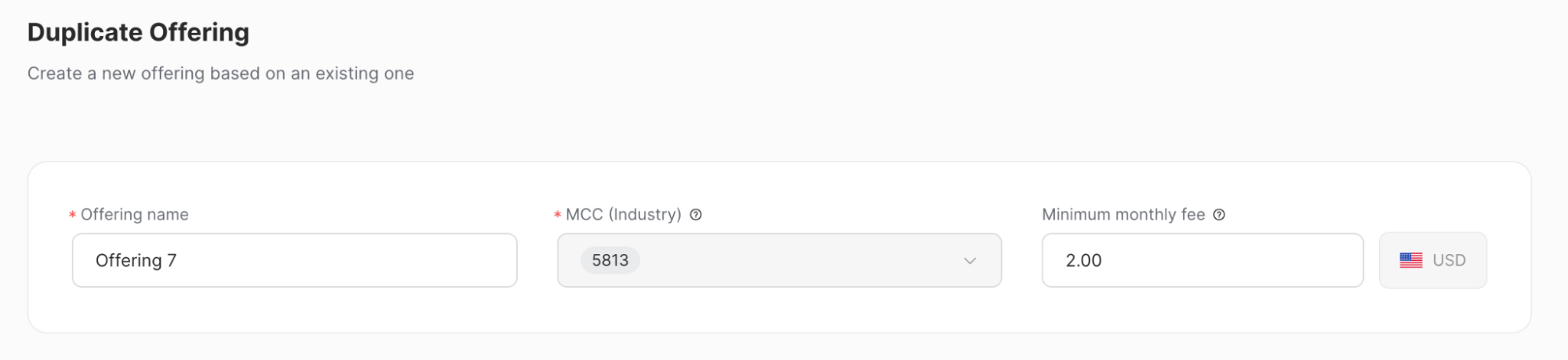
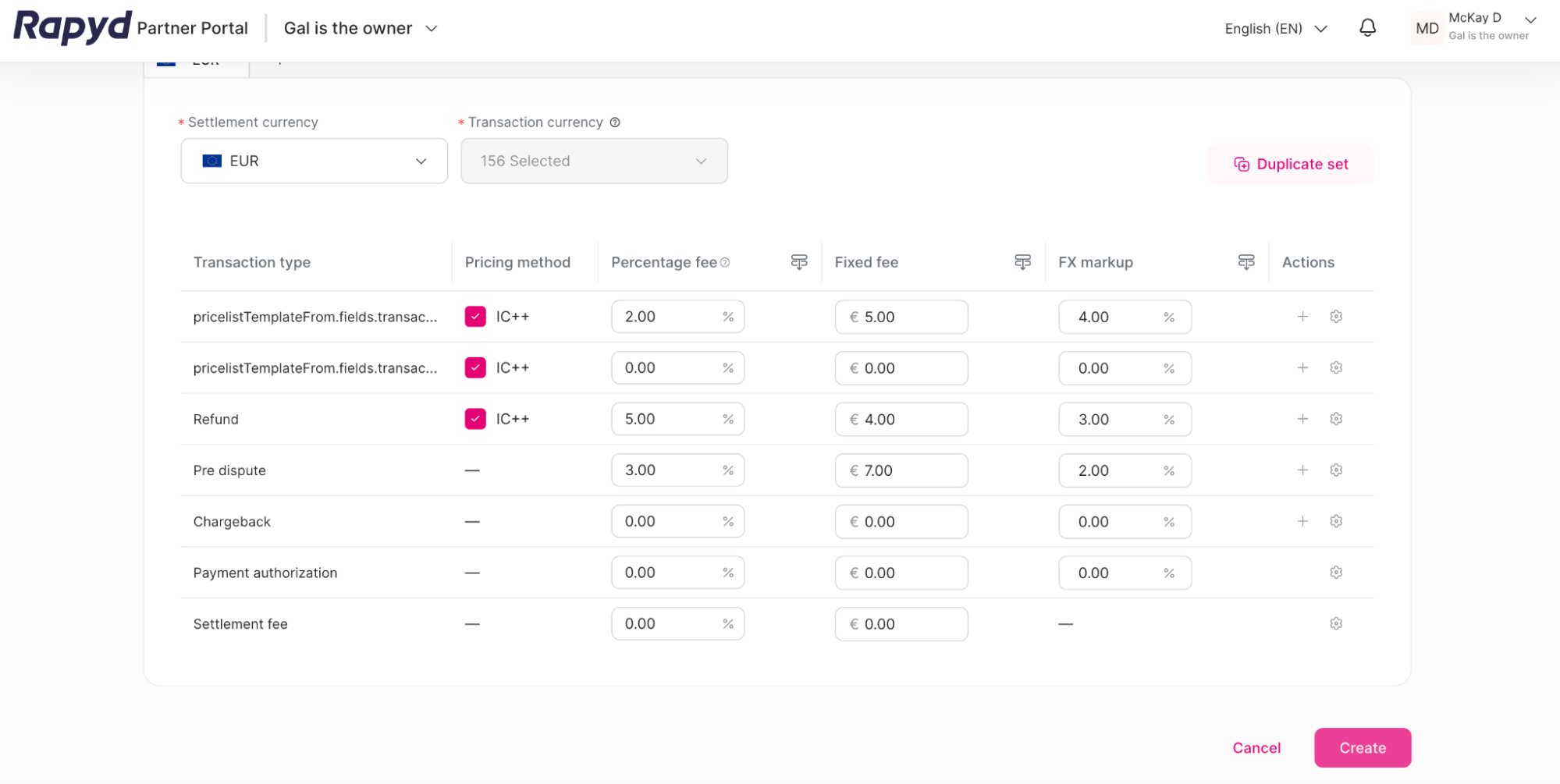
The information from the duplicated offering is included. Edit the offering details if needed.
Click the Create button at the bottom of the page.
The Offering summary page appears.
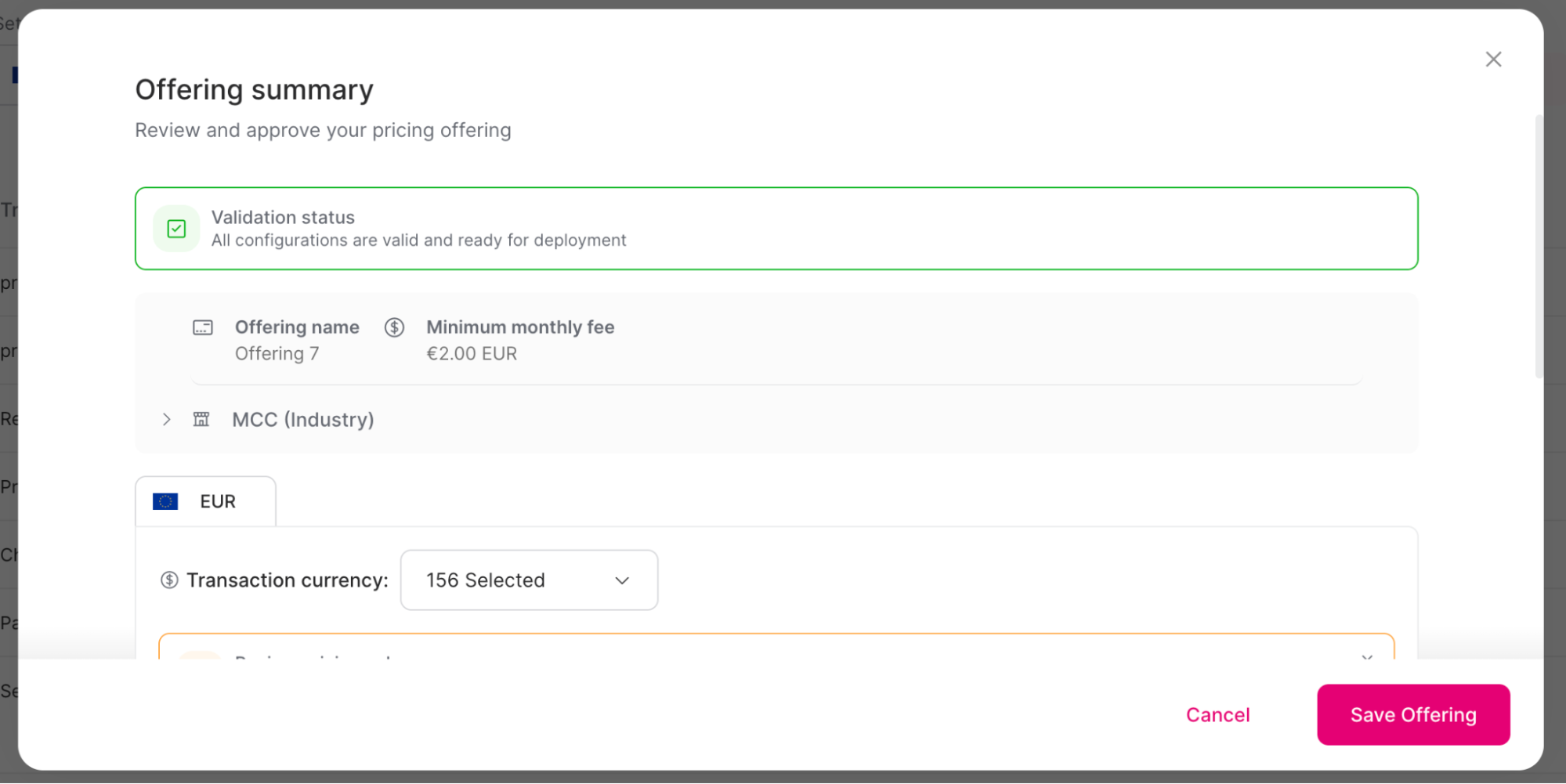
Scroll down to review all of the offering information.
Click Save Offering.
The success window appears.
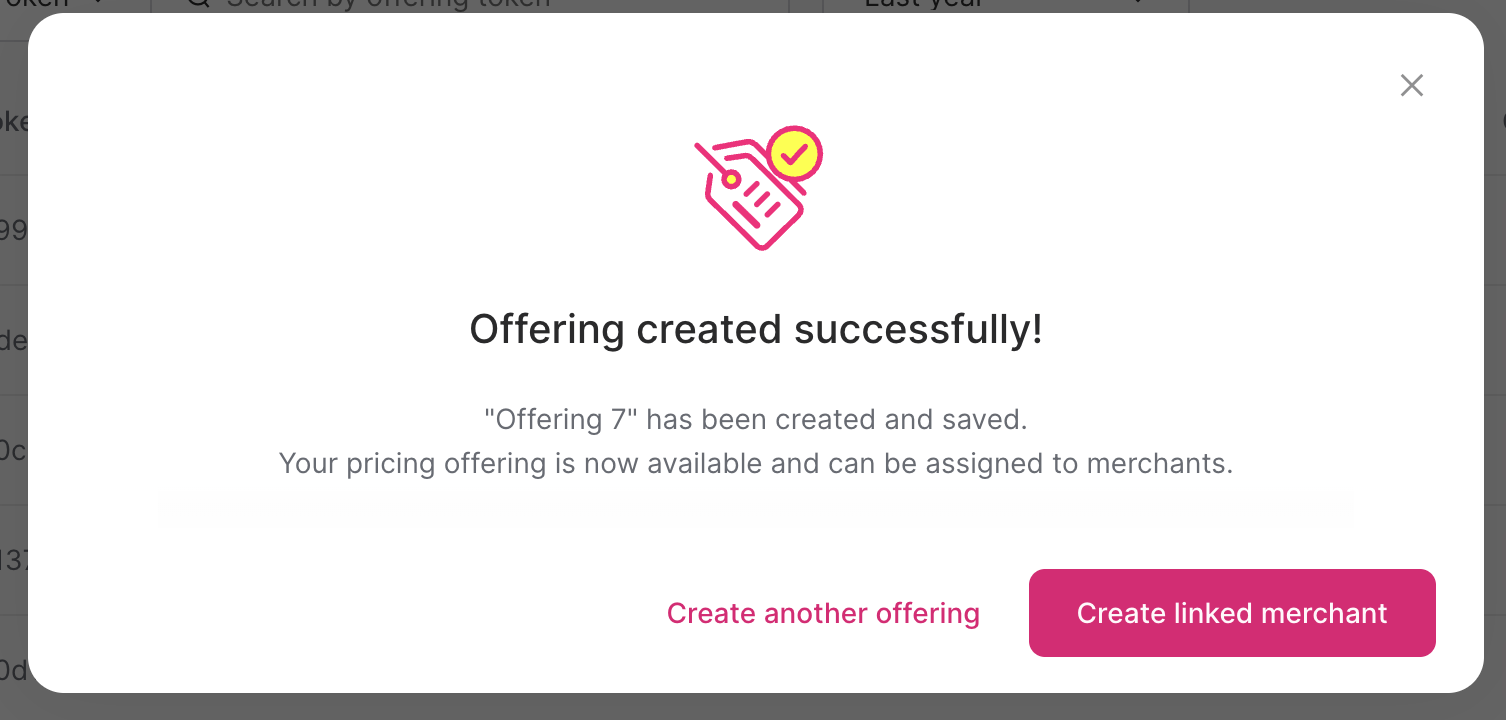
(Optional) You can select to create a new offering, or to create a linked merchant.
Click the x button to close the window.
Your new offering appears in the Offerings page.