Viewing Merchant Reports
You can view and download reconciliation reports generated for a merchant account.
Sign in as described in Signing In To the Partner Portal and navigate to the Merchants tab.
The Merchants page appears.
Click the row of the merchant whose reports you want to view.
The Merchant details page appears.
Click on the Merchant Reports tab.
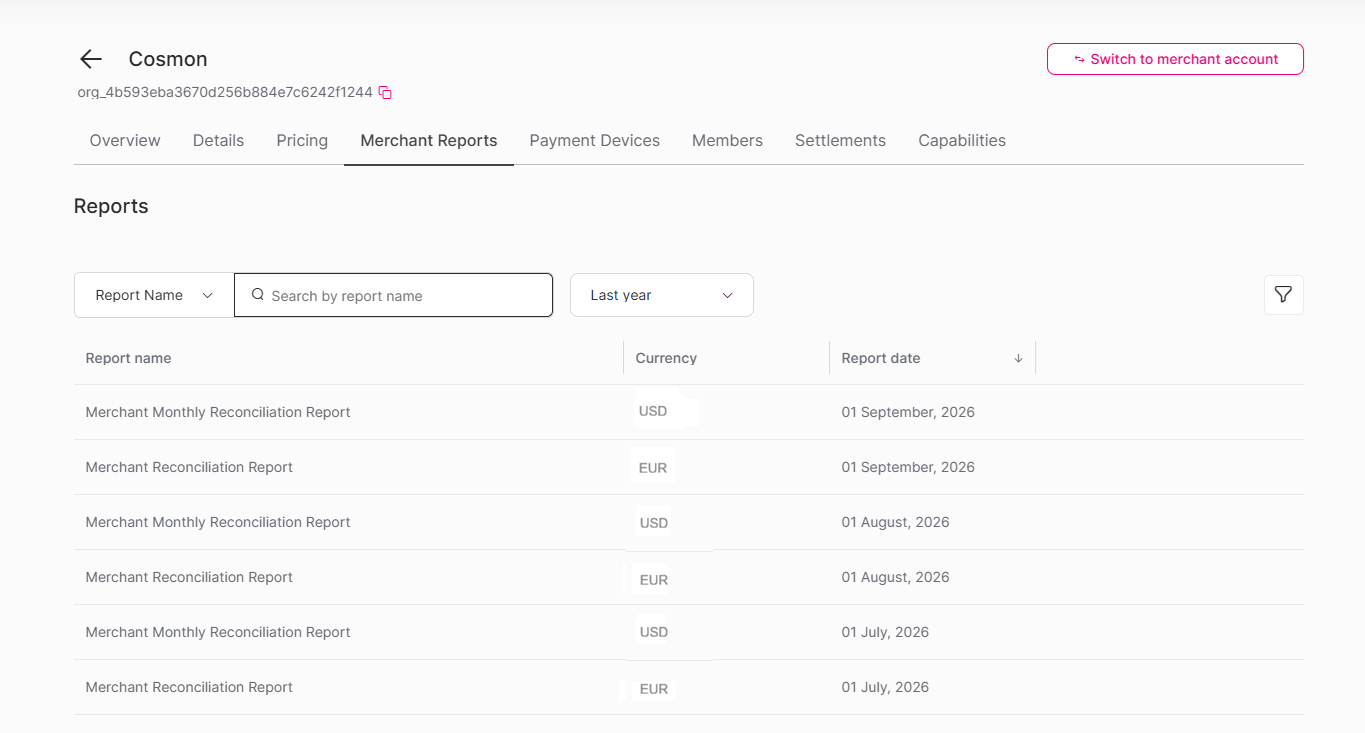
The Reports page appears, listing all reports generated for the merchant account. The following information is shown for each report:
Report name — The name of the report, such as Merchant Monthly Reconciliation Report or Merchant Reconciliation Report.
Currency — The currency associated with the report.
Report date — The date the report was generated. Click the column header to sort by date.
Optional: Use the following controls to filter the list:
Report Name dropdown — Filter the list by report type.
Search by report name — Type to search for a specific report by name.
Date range dropdown — Select a time period to limit the reports shown (for example, Last year).
On the Reports page, hover over the row of the report you want to download.
A download icon appears at the end of the row.
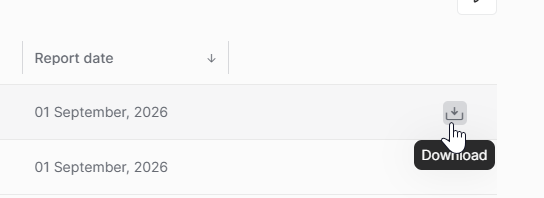
Click the Download icon.
The report file is downloaded to your device.