Merchant Pricing Details
You can view and manage the pricing of a specific merchant, including adding, editing, duplicating, and deleting pricings.
Sign in as described in Signing In To the Partner Portal and navigate to the Merchants tab. The Merchants page appears.
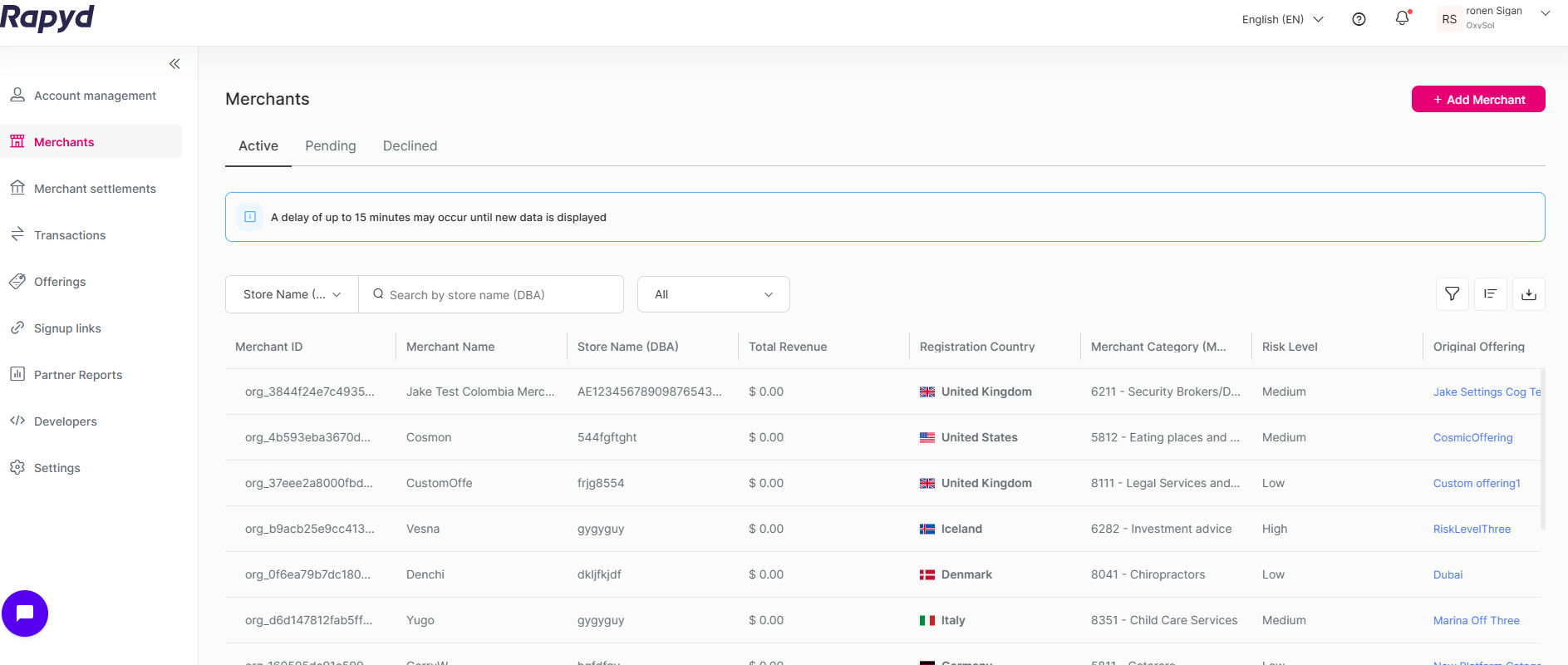
Haga clic en la fila del comercio que desea ver.
Aparece la página Detalles del comercio.
Haga clic en la pestaña Precios ubicada en la parte superior de la página de detalles del comercio. Aparece la página Detalles de precios.
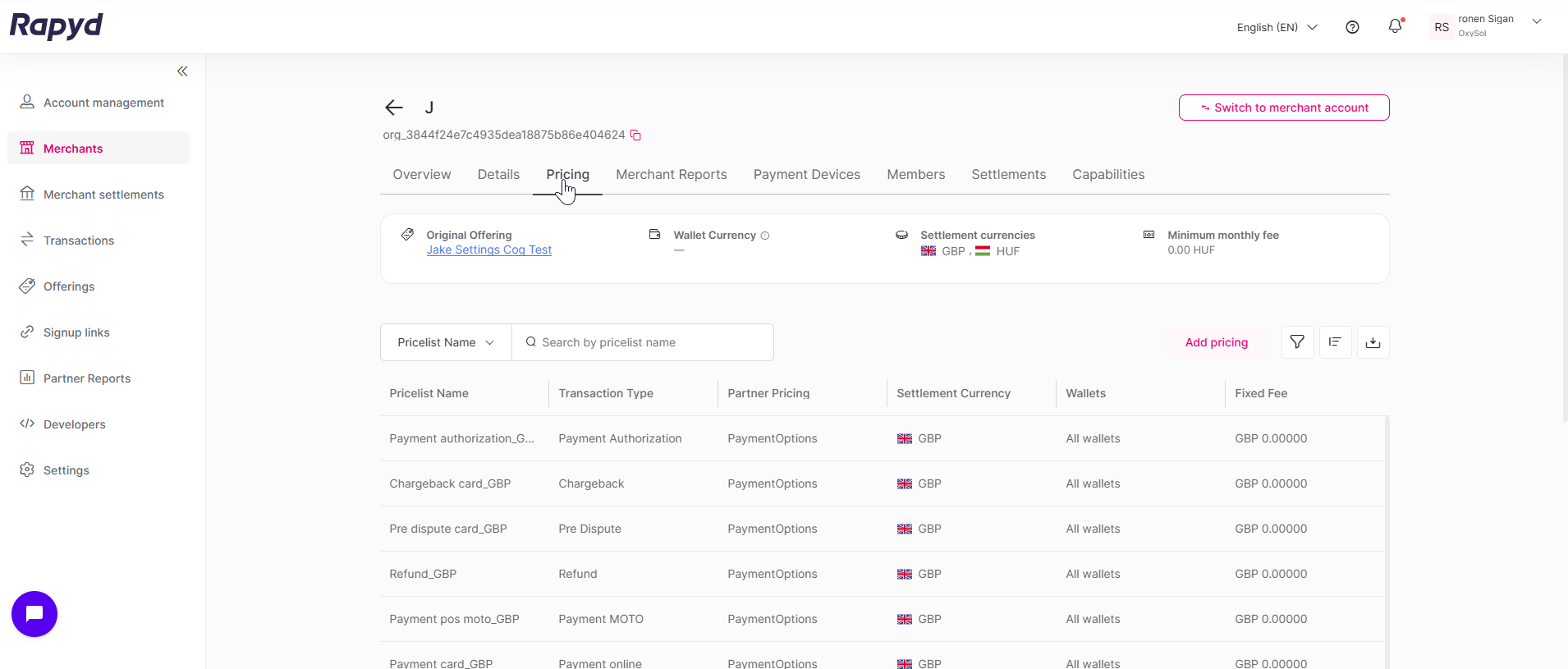
The summary card at the top of the tab shows the following information about the merchant:
Original Offering
Wallet Currency
Settlement currencies
Minimum monthly fee
Puede ver la siguiente información en la página de detalles de precios:
Nombre de la lista de precios
Tipo de transacción
Moneda de transacción
Moneda de liquidación
Moneda de tarifa fija
Tarifa fija
MDR
Margen FX
Tiempo de liquidación
Fecha de entrada en vigor
Listas de precios disponibles
Los tipos de listas de precios disponibles actualmente que se pueden mostrar incluyen:
Scrolling the Table
If the table is wider or longer than your screen, scroll to see all columns and rows.
Click on the Pricing tab located at the top of the Merchant Details page. The Pricing tab appears.
Click on the row of the pricing you want to view. The Pricing details panel opens on the side of the page.
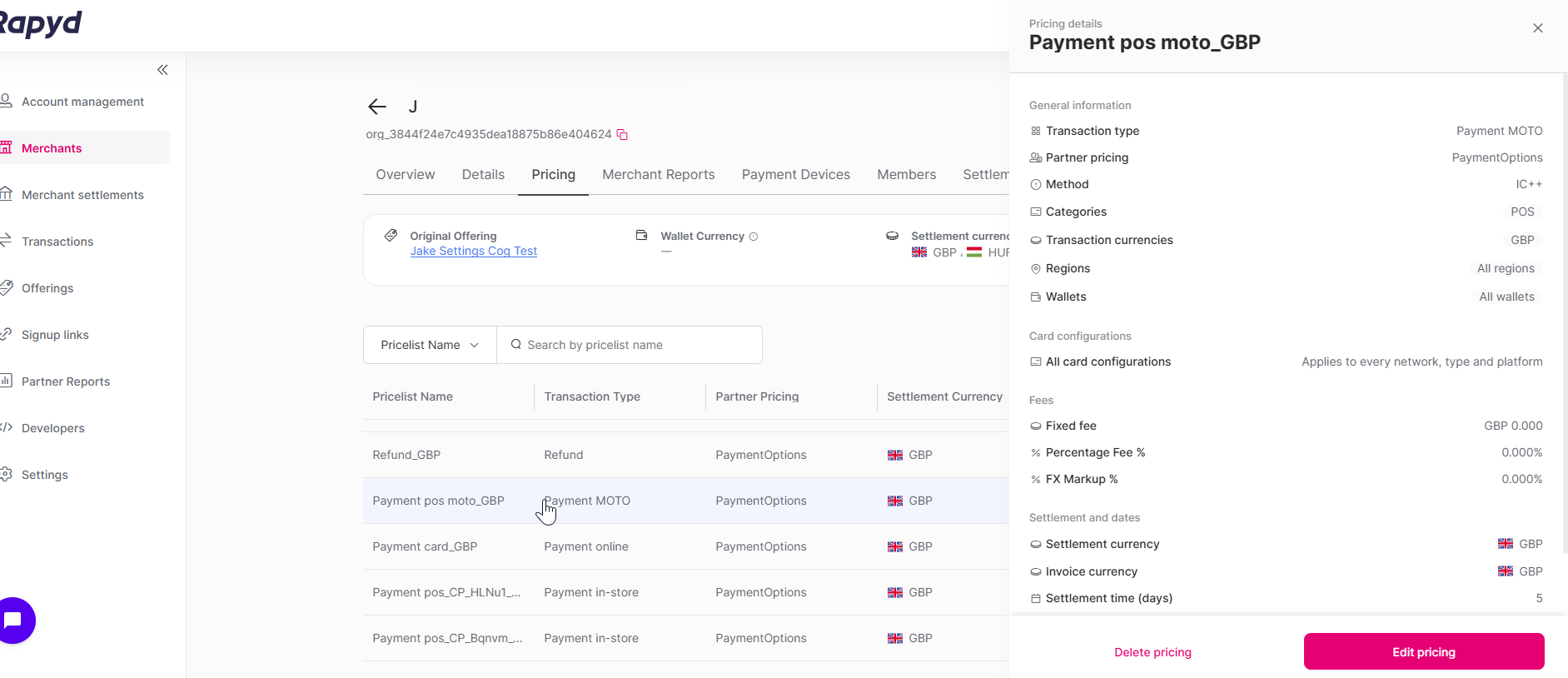
The panel shows the following information:
ID de plantilla
Fecha de entrada en vigor
Moneda de transacción
Plataforma de tarjetas
If a field has many values, such as Transaction currencies or Regions, click Show all to see the full list in a pop-up window. Click Close to return to the panel. In the card configurations list, click Show more to see the remaining card networks.
Puede ver la siguiente información en la sección Información operativa:
Card Configurations
A card configuration is one combination of card network, card type, and card platform, for example Visa · Credit · Consumer.
Use the controls above the pricing table to find the pricing lists you need.
To search, choose Pricelist Name in the search selector, and type the name of the pricing in the Search by pricelist name box.
To filter the table, click the Filter icon. The Filter panel appears.
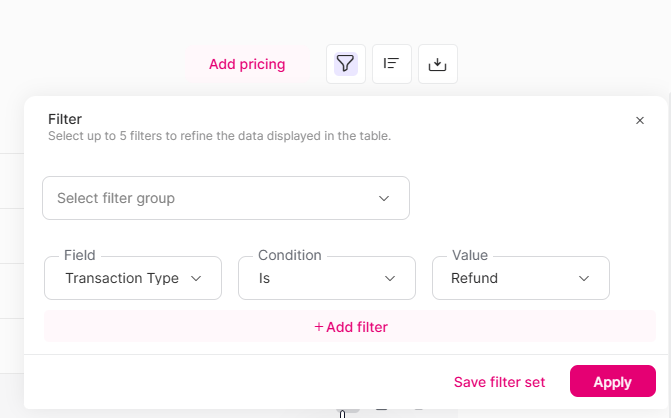
Select the Field you want to filter by, the Condition (Is or Is not), and the Value. For example, select the field Transaction Type, the condition Is, and the value Refund. You can filter by the following fields:
Card network
Card platform
Card type
Categories
Partner Pricing
Pricelist Name
Settlement Currency
Transaction Type
Wallet
Filter Values
The value lists show only the options that exist for this merchant.
To add another filter, click Add filter. Filters are combined with AND, so a pricing must match all of them. You can use up to 5 filters at the same time. To remove a filter, click the trash can icon next to it.
Filtering by Card Network, Type, and Platform
When you combine card network, card type, and card platform filters, a pricing matches only if at least one of its card configurations has all of the selected values together. For example, filtering by Visa and Debit does not match a pricing that has only Visa Credit and Mastercard Debit.
Click Apply. The table shows only the matching pricing lists, and the number of active filters appears on the Filter icon.
To reuse a group of filters later, click Save filter set.
To choose which columns the table shows, and in what order, click the Customize columns icon (the middle of the three icons above the table, between Filter and Export). In the Customize columns window, select or clear the columns you want, and click Apply.
To export the list, click the Export icon. In the Export data window, choose All columns or Visible columns, and click Export.
Click on the Pricing tab located at the top of the Merchant Details page. The Pricing tab appears.
Click Add pricing. The Add pricing window appears.
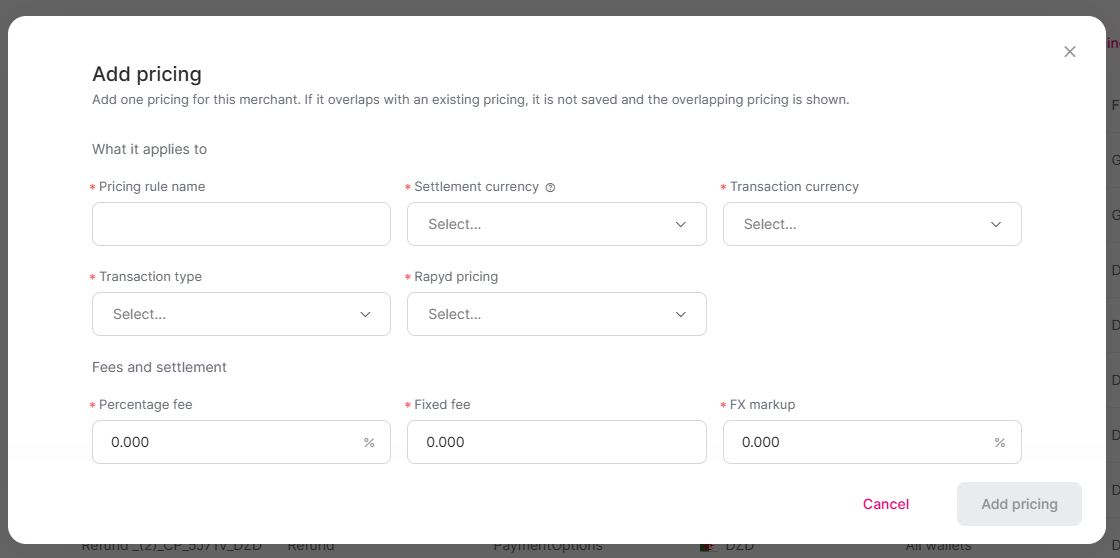
Under What it applies to, fill in the following fields. All of these fields are required:
Pricing rule name: a name for the pricing.
Settlement currency: the currency in which the merchant is settled.
Transaction currency: the currencies of the transactions. Select All currencies, Select All, or one or more specific currencies.
Transaction type: for example Payment in-store, Refund, or Chargeback. Select Settlement Fee to add a settlement fee (see the note below).
Rapyd pricing: the Rapyd pricing that this pricing is based on. The list shows only the Rapyd pricing options that match the merchant's risk level.
Optionally, select the IC++ checkbox. When selected, the merchant is charged the actual interchange rate plus the configured fees. When cleared, only flat fees apply.
Optionally, under Cards and wallets, narrow the pricing. Leave a field empty to apply the pricing to everything.
Regions: select one or more regions, for example Domestic, EEA-UK, or Europe Intra-EEA. The default is All regions.
Wallets: select the merchant wallets the pricing applies to. The default is All wallets.
Card configurations: select the card configurations the pricing applies to. The default is All card configurations.
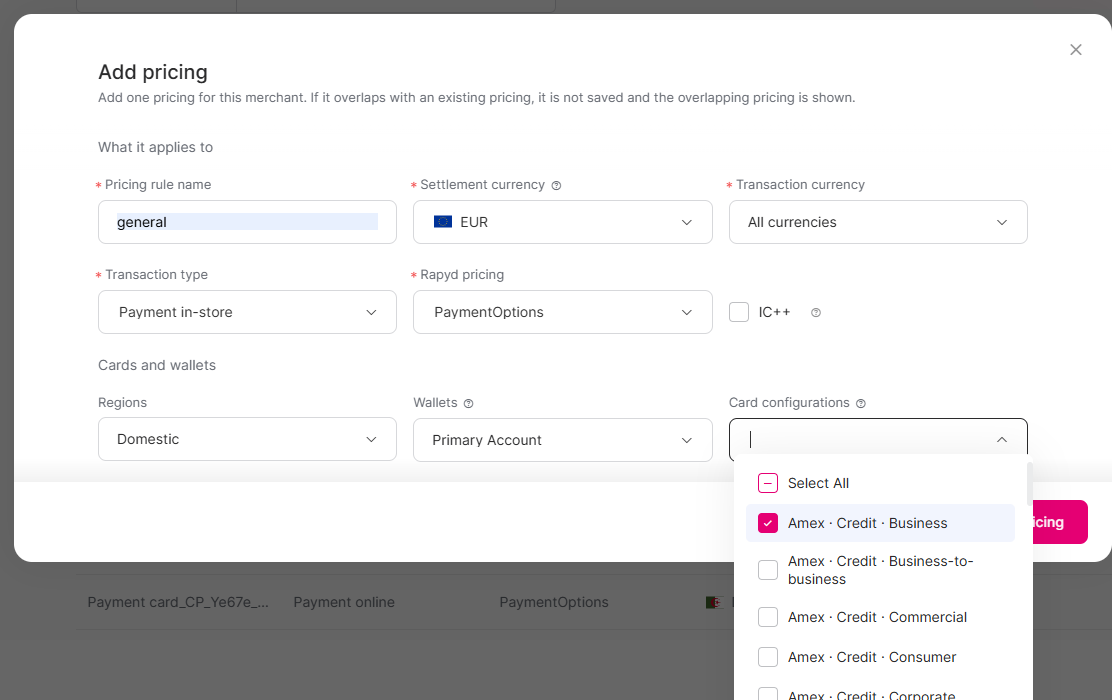
Selecting Card Configurations
Card configurations are chosen from a single searchable list. Each option is a whole combination of card network, card type, and card platform, such as Visa · Credit · Consumer or Mastercard · Debit · Commercial. Type a word such as "visa" or "debit" to narrow the list, and select as many combinations as you need. Select Select All to select every combination.
Under Fees and settlement, enter the Percentage fee, Fixed fee, and FX markup. All of these fields are required.
Click Add pricing. A confirmation message appears. Click Close.
Adding a Settlement Fee
To add a settlement fee, select Settlement Fee as the transaction type. The form then asks only for the Rapyd pricing, the settlement currency, and the fees.
Overlapping Pricing
If the new pricing overlaps with an existing pricing, it is not saved. The error message names the pricing that it overlaps with, so you know what to change or delete.
Click on the Pricing tab located at the top of the Merchant Details page. The Pricing tab appears.
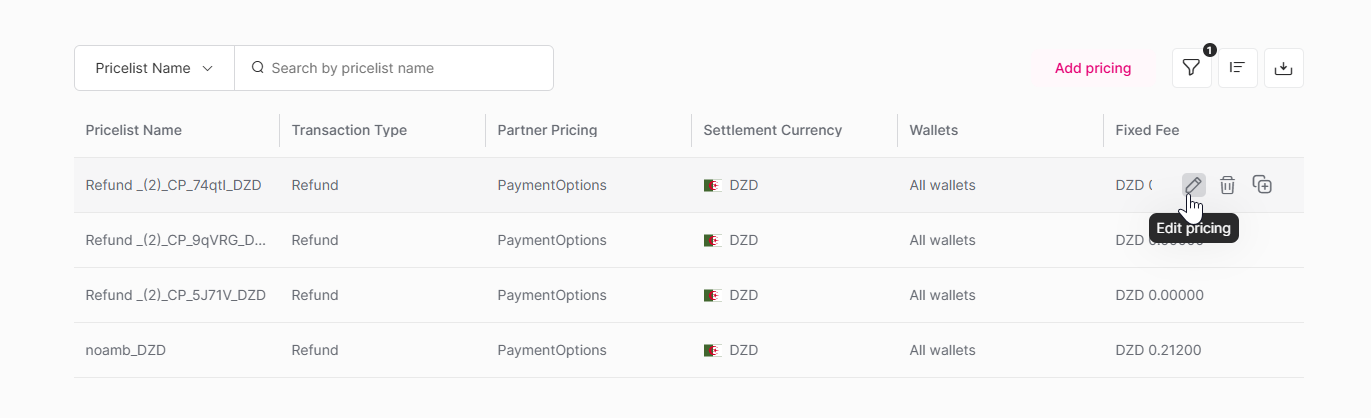
Hover over the row of the pricing that you want to change and click the Edit pricing (pencil) icon, the left-most of the three icons that appear on the row. The other two icons are Delete pricing and Duplicate. Alternatively, click the row to open the details panel and click Edit pricing at the bottom of the panel.
The Edit pricing window appears. Change the Percentage fee, Fixed fee, and FX markup as needed. For payment-type pricing lists, you can also change the Regions, Wallets, and Card configurations, selected in the same way as when adding a pricing.
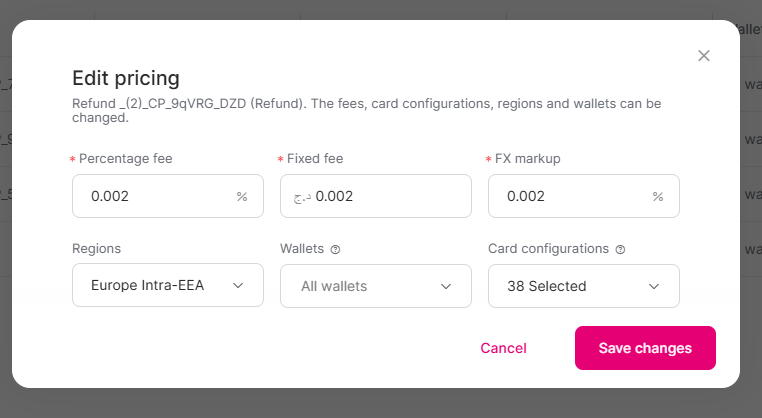
Click Save changes. A confirmation message appears. Click Close.
Editing a Pricing
The change is applied to the same pricing, so its history remains intact.
For a settlement fee, you can change only the percentage fee and the fixed fee. The change applies to every currency of that settlement fee.
Hover over the row of the pricing that you want to copy and click the Duplicate icon (the right-most of the three icons that appear on the row).
The Add pricing window opens with all the values of the pricing already filled in, including its card configurations.
Change only the values that should be different and click Add pricing.
Deleting a pricing stops it from being used for the merchant from today. Past transactions are not affected, and a deleted pricing cannot be reactivated. Add a new pricing instead.
Hover over the row of the pricing that you want to delete and click the Delete pricing icon (the middle of the three icons that appear on the row). Alternatively, click the row to open the details panel and click Delete pricing at the bottom of the panel.
The Delete pricing window appears and asks you to confirm. It explains that the pricing stops being used for this merchant from today, that past transactions are not affected, and that this cannot be undone.
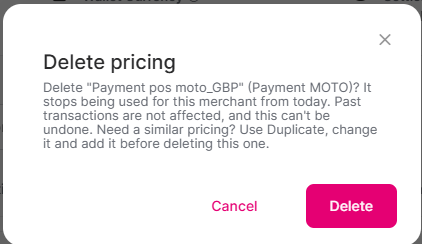
Click Delete to confirm, or Cancel to keep the pricing.
Need a Similar Pricing?
If you need a similar pricing, click Duplicate on the pricing, change the values, and add the new pricing before you delete the old one.
If something goes wrong when you add or edit a pricing, a message explains the problem, for example The pricing was not saved.
Read the message. If the pricing overlaps with an existing pricing, the message names that pricing.
Click Go back to return to the form with everything you entered, change the values that caused the problem, and save again. Alternatively, delete the existing pricing that causes the overlap. Click Close to leave the form.