Pairing a Merchant Payment Device
You can pair a physical payment device to a merchant's client wallet so the merchant can accept in-person, card-present transactions.
Sign in as described in Signing In To the Partner Portal and navigate to the Merchants tab.
The Merchants page appears.
Click the row of the merchant you want to pair a payment device to.
The Merchant details page appears.
Click on the Payment Devices tab.
The Payment devices page appears, showing any payment devices already paired to the merchant's client wallet. If no device is paired yet, the page shows a "No data is available" message.
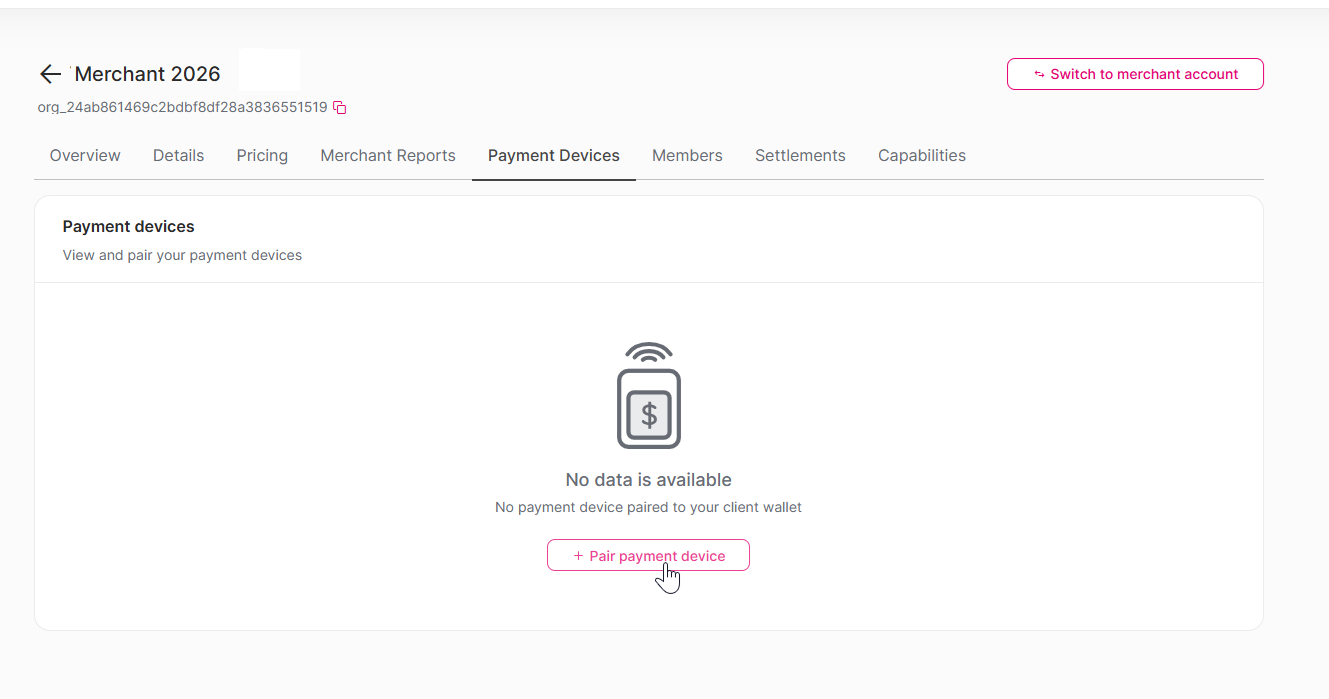
Click + Pair payment device.
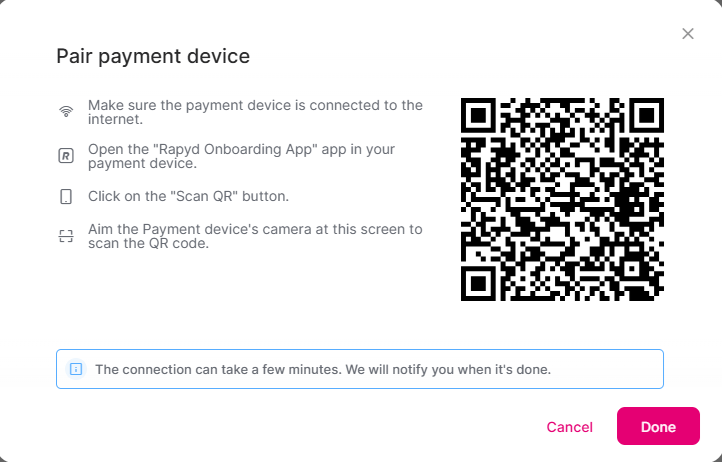
The Pair payment device dialog appears, showing a QR code.
On the payment device, complete the following:
Make sure the payment device is connected to the internet.
Open the Rapyd Onboarding App app on the payment device.
Tap Scan QR.
Aim the payment device's camera at the QR code on the screen to scan it.
Nota
The connection can take a few minutes. You are notified in the Partner Portal when pairing is complete.
Click Done to close the dialog.
The payment device is paired to the merchant's client wallet and appears on the Payment devices page.