Payment Terminal White-Labeling and UI Customization
Introduction
Partners and merchants can fully customize the user interface of both the Rapyd Core app and the Rapyd Standalone app. For the LocaLink app and CloudLink app only the logo and background color can be customized. The guide below explains how to tailor the UI to your brand.
Importante
Custom fonts, animations, and other UI assets for Payment Terminal white-labeling must not exceed 2MB. Files larger than this limit will fail to render (e.g., animations will not display).
Rapyd Core and Rapyd Standalone App UI Customization
When deploying the Rapyd Core application to a payment terminal via the Max Store, you’ll find a “Custom theme” section at the bottom of the initial configuration screen. From there, you can personalize the app by configuring fonts, colors, and animations. The theme applied to the Rapyd Core app will automatically be extended to the Rapyd standalone app.
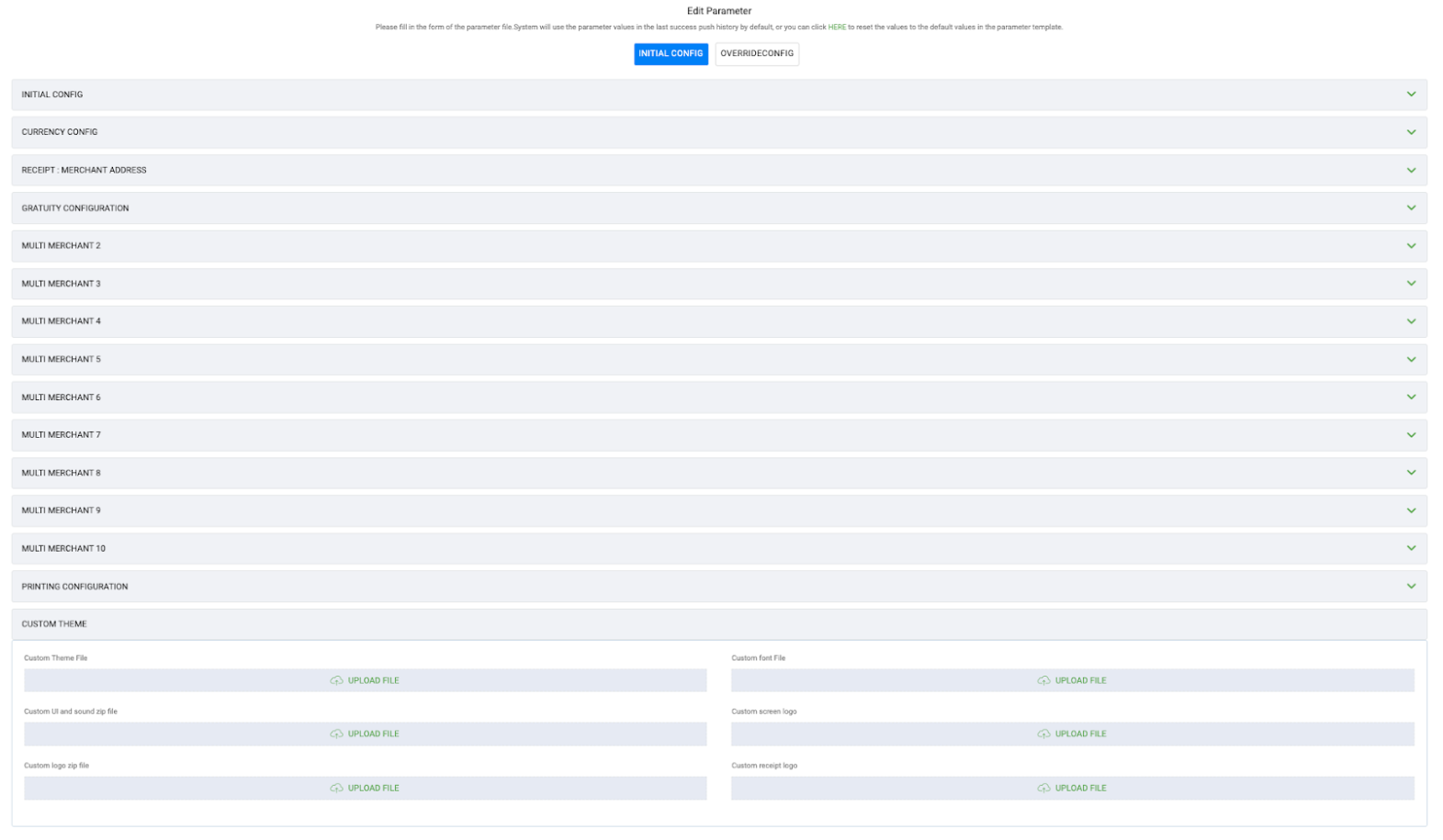
Below is a definition of the different fields:
Custom Theme File - Custom theme file modifying the color scheme, file needs to be named “customColors.xml”
Custom font File - Custom font file, needs to be a TTF font file.
Custom screen logo
This file needs to be named “screenlogo.jpeg” or “screenlogo.png”
The logo size is 100x300 pixels.
Custom receipt logo
This file needs to be named “receiptlogo.jpeg” or “receiptlogo.png”
The logo size is 100x300 pixels.
Custom UI and sound file - This is a zip file that can include any of the following files. Animations (Lottie JSON files):
Loading.json
Approved.json
Declined.json
Read_card.json
approved_success.json (This is an overlay animation)
Sound files:
approvedSound.mp3
failSound.mp3
For information about creating Lottie files, see LottieFiles.
Custom Colors Helper
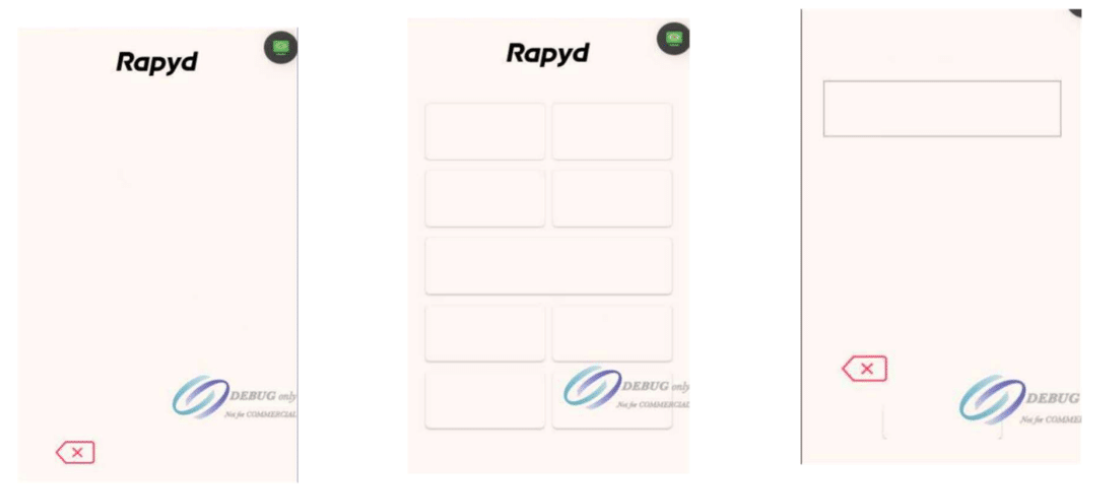
The screenshots below demonstrate how the selected color setting impacts the Rapyd app — all elements highlighted in red are affected.
custom_primary_color
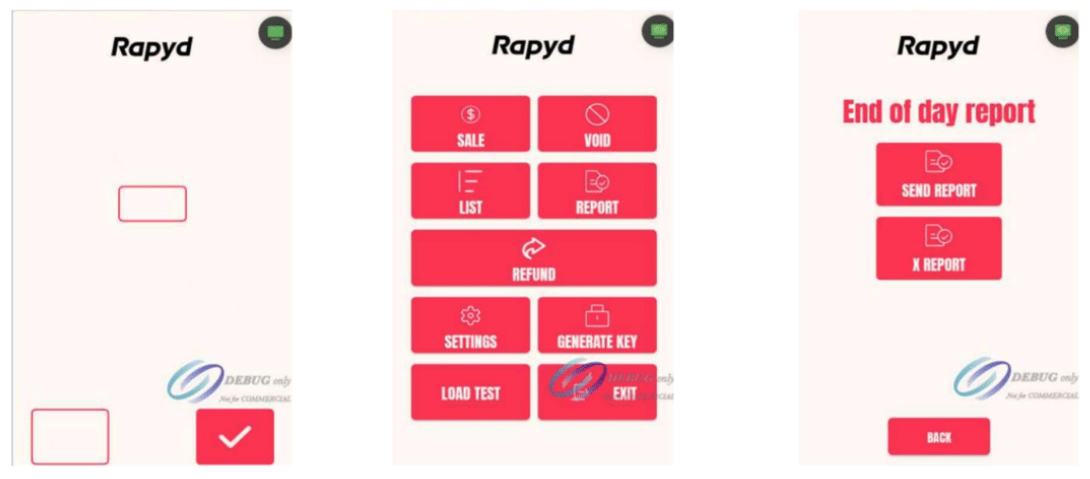
custom_secondary_color
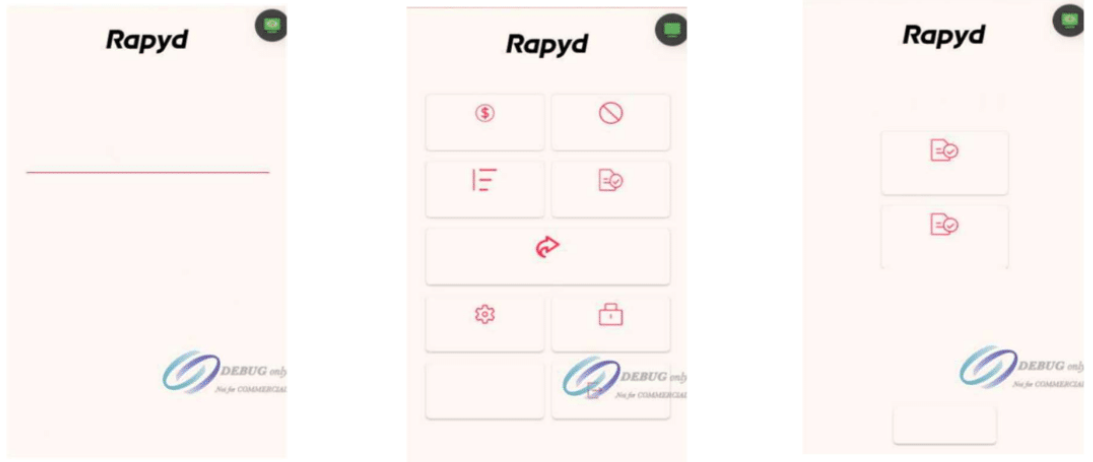
custom_background_color
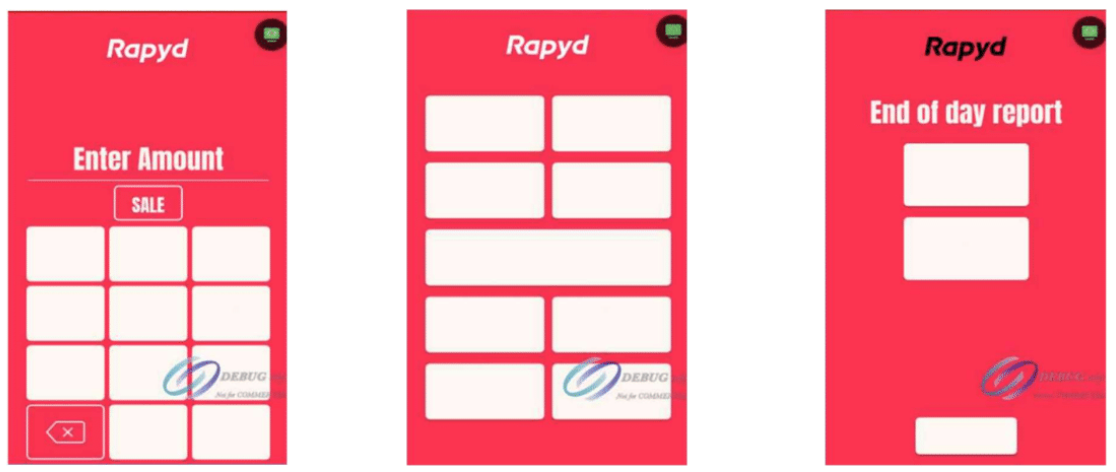
custom_negative_color
The error text in bad card read.
custom_accent_color
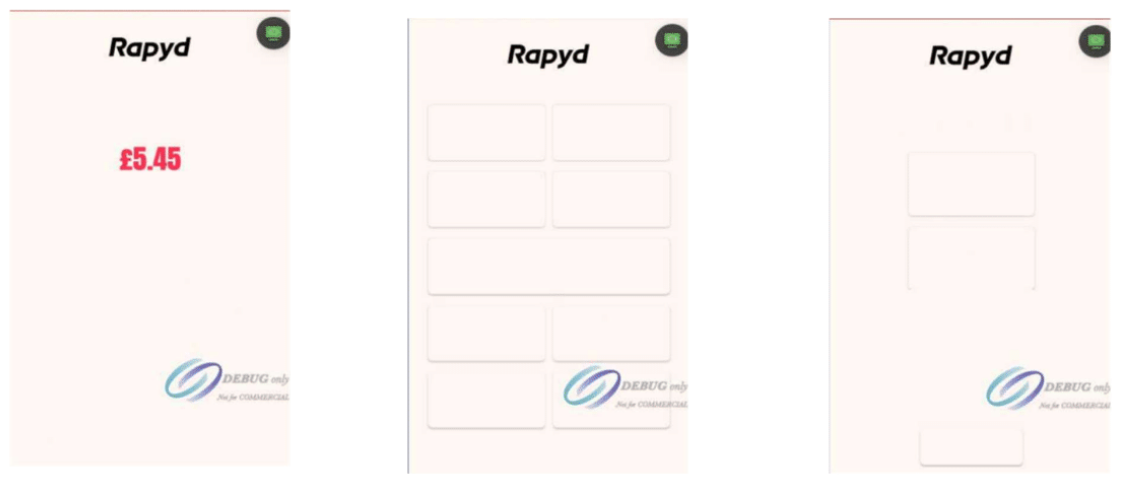
custom_button_color
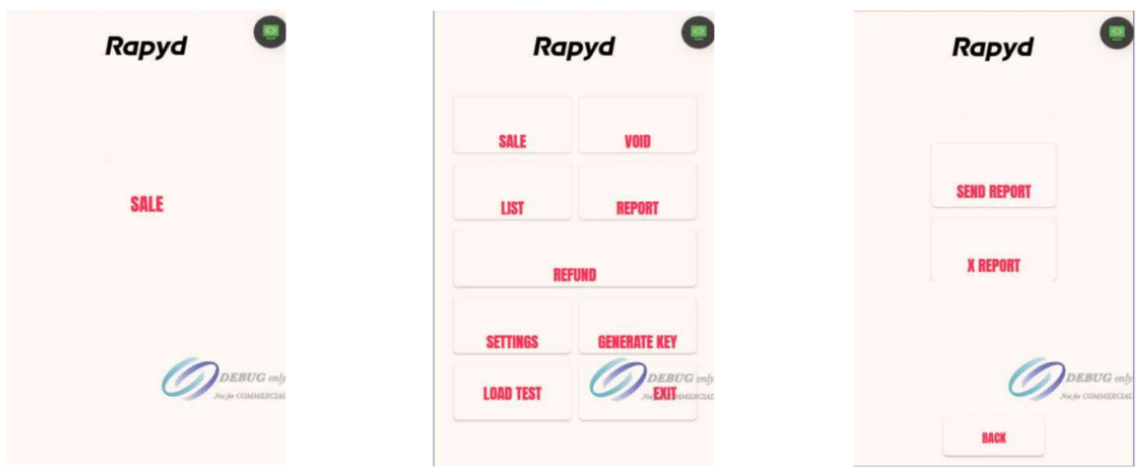
custom_hint_color
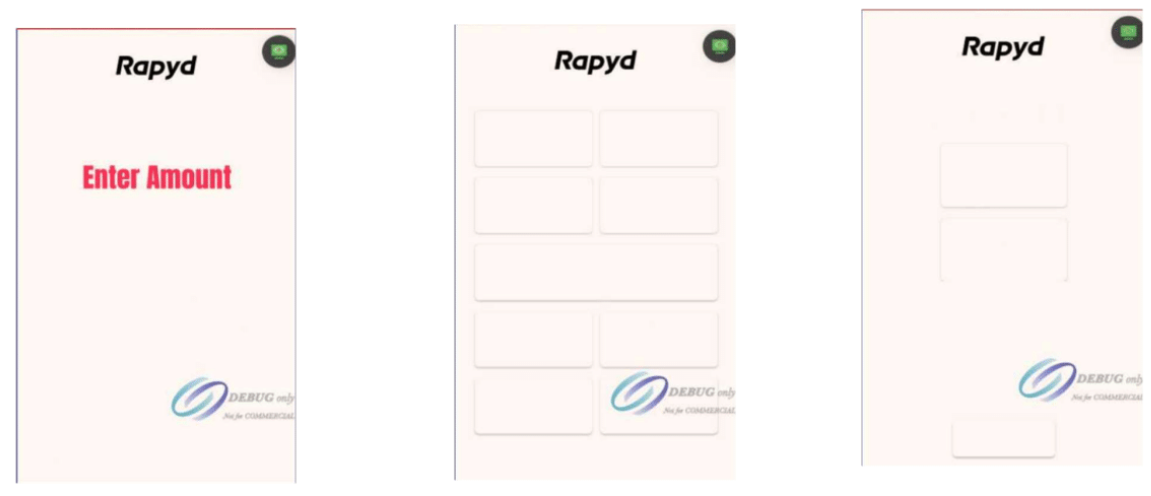
custom_keyboard_color
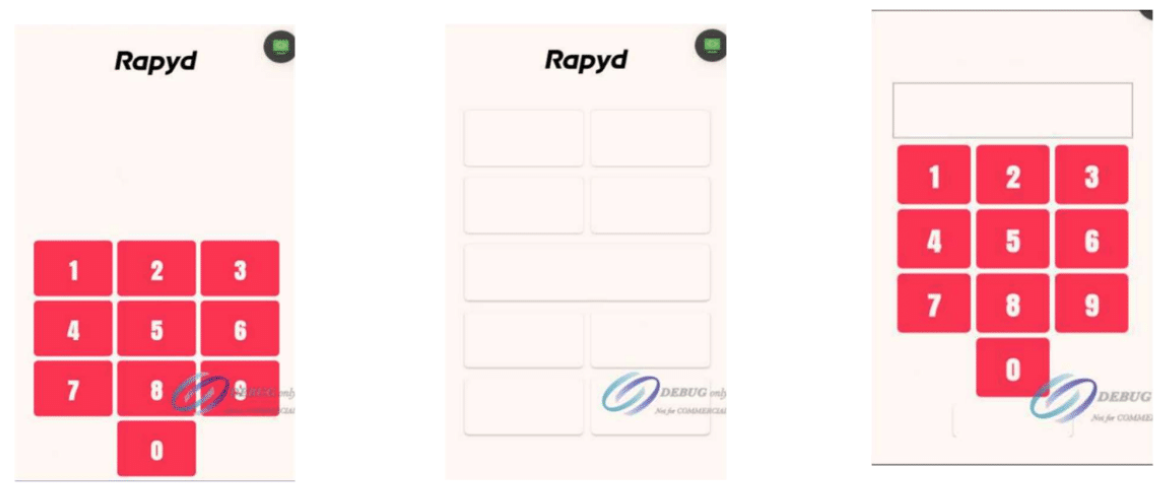
custom_keyboard_text_color
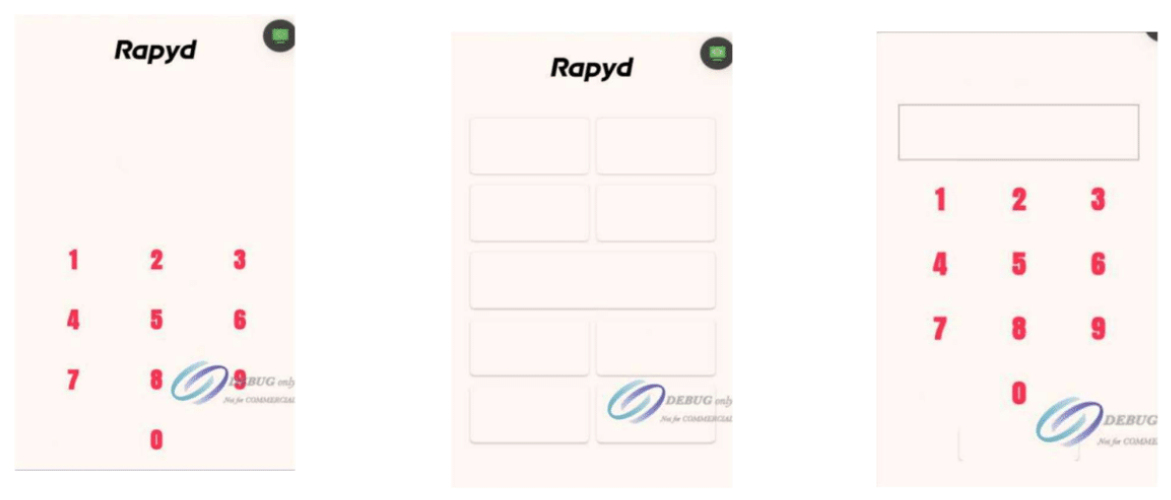
custom_keyboard_ok_color
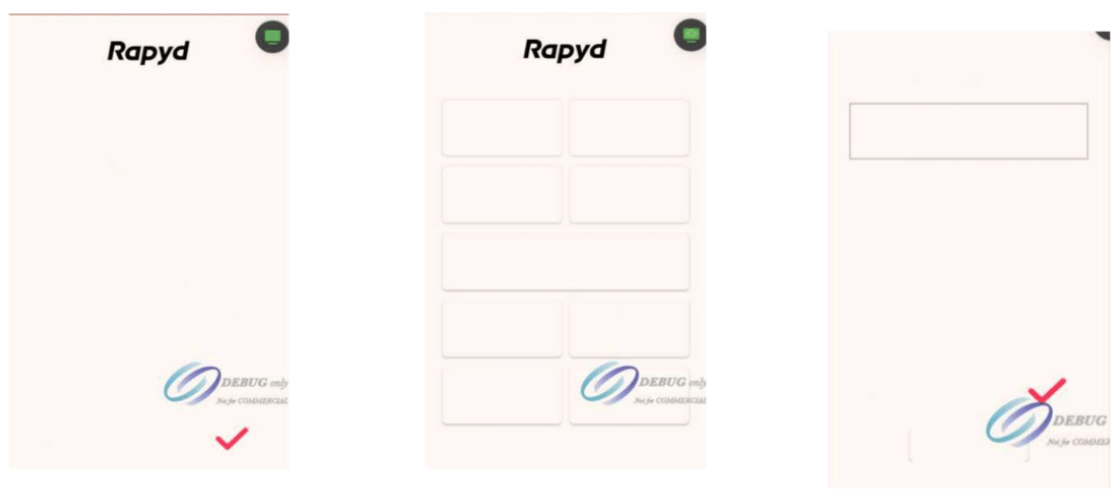
custom_keyboard_back_color
Examples for Customizing the Theme
The following repository provides a collection of examples for customizing the user interface (UI) of payment terminals. It includes sample configurations and practical implementations that show how to modify the visual appearance, branding elements, and overall user experience.
Nota
To play animation files, you can test them with the following link: Preview Lottie Animation Live
To get the names of all color palettes, investigate this page: Color Hunt
Rapyd CloudLink and LocaLink App UI Customization
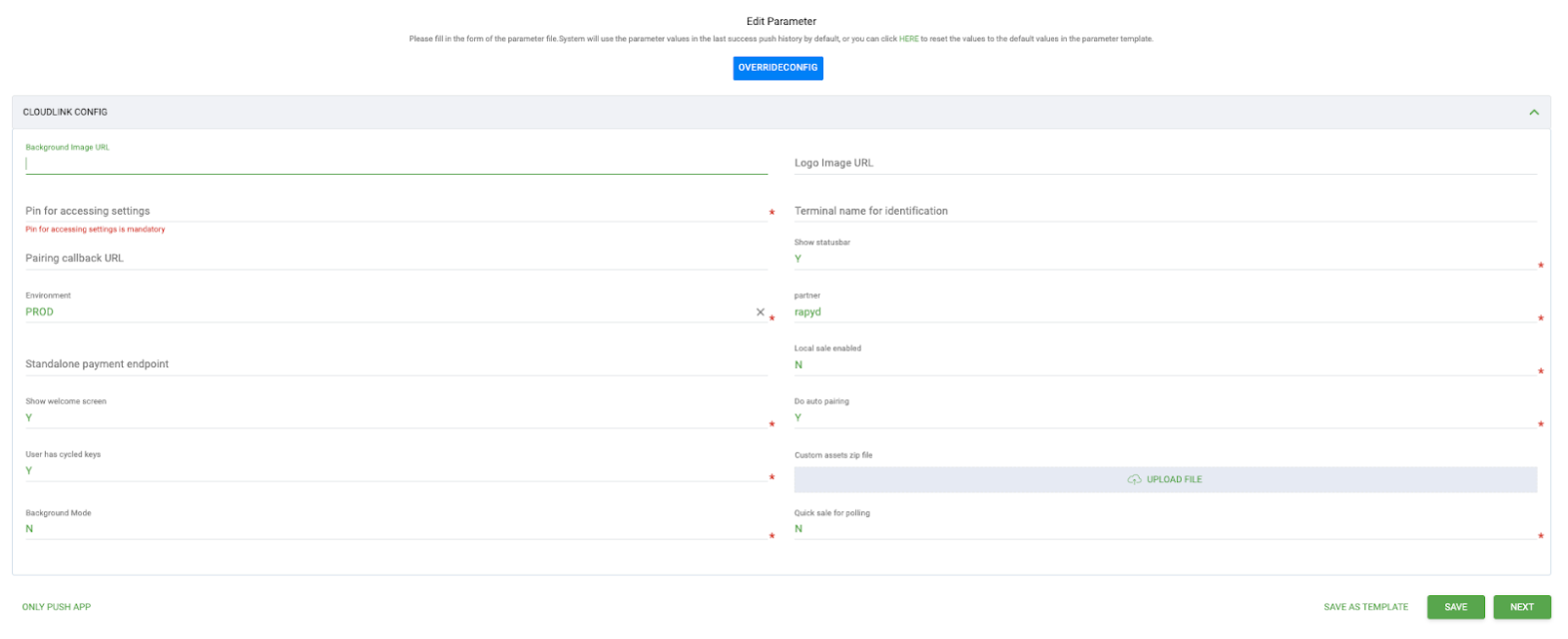
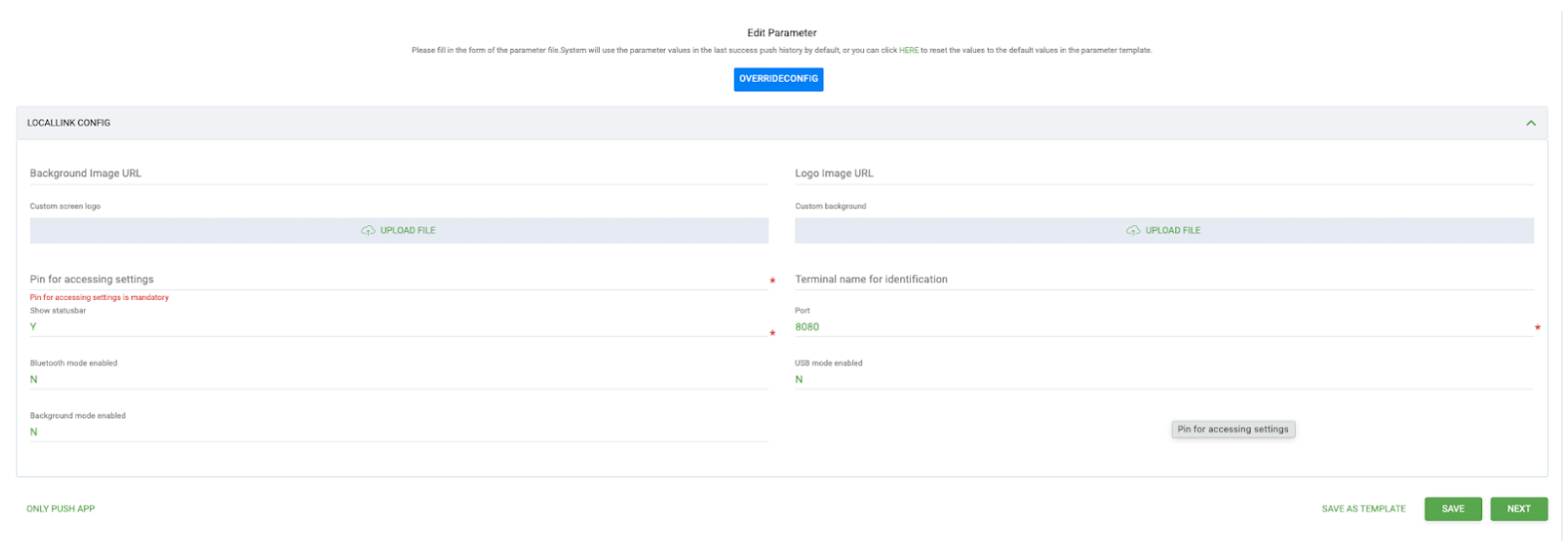
When deploying the Rapyd CloudLink or LocaLink application to a payment terminal via the Max Store, you’ll find two fields to customize the logo and background image of the application.
Both the background image and logo can be a URL pointing to the underlying image file OR be uploaded directly as png or jpeg files in the configuration template.