Stopping Installments on a Payment
You can choose how many of the remaining installments of an installment payment to stop.
Nota
Card Installment payments are only availble in specific markets and regions.
Sign in to the Client Portal and, under Collect, click Payments. The Payments page appears.
Click on the row of the installment payment that you want to stop. The payment details panel opens on the side of the page.
Identifying an Installment Payment
Under Payment details, an installment payment shows Credit terms with the value installments, and an Installment number such as 1 of 4.
Click Stop Installments at the bottom of the panel.
The Stop Installments window opens and loads the details of the payment. When it is ready, it shows how many installments remain on the payment, and the Number of installments to stop field.
Nota
Screenshots show the British spelling "Instalments".
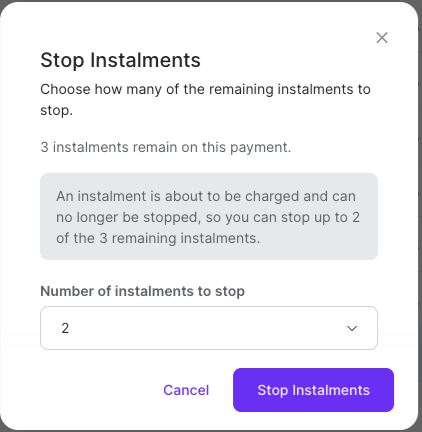
In Number of installments to stop, select the number of installments that you want to stop. You can select any number from 1 up to the maximum shown for the payment.
Click Stop Installments. A confirmation message appears: Installments stopped. The installment plan for this payment has been stopped successfully.
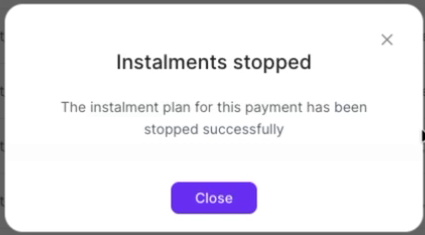
Click Close.
Selecting the Number of Installments
You always select a number of installments to stop. The maximum is normally the number of installments that remain on the payment.
When an installment is about to be charged, that installment can no longer be stopped. In this case the window shows a notice, for example An installment is about to be charged and can no longer be stopped, so you can stop up to 2 of the 3 remaining installments, and the maximum is one less than the number of remaining installments. This usually happens in the week before the 2nd of the month, and mostly applies to Shva payments.
You can view the installment information of a payment in the payment details panel, under Payment details: Credit terms and Installment number. This information is also available as columns in the payments table and in the payment report.
In some cases the Stop Installments window does not let you select a number of installments.
When No Installments Can Be Stopped
If no installments can be stopped for the payment, the window shows the reason instead of the number selector, and you cannot stop installments.
If a previous stop request for the payment is still being processed, the window shows the message A stop of installments is currently being processed for this payment. Try again on the next business day. Click Close, and try again on the next business day.
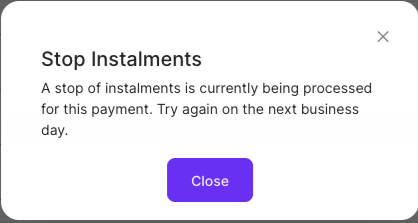
If the stop request fails for any other reason, the window shows the error message as it was returned.