End-to-End Reconciliation
How to read, validate and reconcile settlement data
This guide explains the structure of Rapyd reconciliation reports, how to interpret each section, and how to reconcile your settlement totals. Screenshots reflect the live report format.
Report Types
Rapyd provides two categories of reconciliation and settlement reports, each available at different time scopes.
Report Type | What It Covers |
|---|---|
Merchant Reconciliation Report | Daily report - all transactions processed and closed during a 24-hour period. |
Merchant Monthly Reconciliation Report | All transactions processed and closed during a calendar month. |
Merchant Reconciliation by Settlement Report | All transactions included in a specific settlement, grouped by settlement date. Enable via the “By Settlement” toggle in Report Settings. |
Merchant Settlement Report | Settlements released to the merchant on a specific day. |
Merchant Monthly Settlement Report | Monthly summary of the Merchant Settlement Report. |
You can download the reports as described in this guide.
Understanding the Report Structure
The reconciliation report is divided into column groups, each covering a different part of the reconciliation process. The sections below describe each group with field definitions and validation guidance.
Columns A–H: Original Transaction Details

Column | Description |
|---|---|
A – Transaction Type | Type of transaction. For example, payment, payment_authorization, refund. |
B – Rapyd Transaction ID | Unique identifier for the transaction. Share this with the Support team when investigating. |
C – Rapyd Reference ID | Internal reference identifier for the payment. This is the primary identifier to share with Support when investigating a specific transaction. |
E – Transaction Method Type | The payment method used, e.g. cy_visa_card, cy_mastercard_card. |
G – Presentment Currency | The currency displayed to the end user at checkout. |
H – Presentment Amount | The amount displayed to the end user at checkout. |
Columns I–N: Wallet Details
These columns show how the transaction is reflected in the merchant wallet, including any foreign exchange (FX) conversion that was applied.
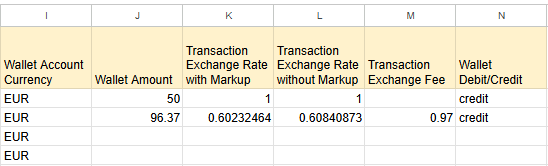
Column | Description |
|---|---|
I – Wallet Account Currency | The currency in which the transaction is reflected in the merchant wallet. |
J – Wallet Amount | Transaction amount credited to the wallet. |
K – Transaction Exchange Rate with Markup | The applied exchange rate between transaction currency and wallet currency including the contractual markup. |
L – Transaction Exchange Rate without Markup | The clean exchange rate between transaction currency and wallet currency without any markup. |
M – Transaction Exchange Fee | The difference between the clean and marked-up converted amounts. |
N – Wallet Debit/Credit | Indicates whether the wallet was credited or debited. |
Note
When wallet currency = transaction currency: Columns J and H display the same amount, both exchange-rate columns display 1, and the Transaction Exchange Fee is empty.
When currencies differ: apply both exchange rates to the original transaction amount - the difference should equal Column M. The markup applied is as specified in the contract.
Columns O–R: Fee Details
These columns cover all transaction fees as defined in the merchant contract, including MDR, interchange, and scheme fees.
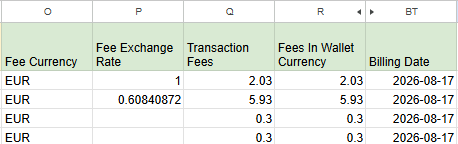
Column | Description |
|---|---|
O – Fee Currency | The currency in which fees are calculated, as specified in the contract. |
P – Fee Exchange Rate | Exchange rate from transaction currency to fee currency. |
Q – Transaction Fees | Total fees for the transaction: MDR, interchange, and scheme fees. |
R – Fees In Wallet Currency | Total fee amount converted to wallet currency and deducted from the wallet. |
BT – Billing Date | Date on which the fees were deducted from the wallet (usually one day after the transaction closes). |
Note
The MDR rate is not displayed directly in the report. To validate it, apply the contractual MDR rate to the transaction amount in the fee currency.
Transaction fees are first calculated in transaction currency, then converted separately into wallet currency (for deduction) and settlement currency (for settlement calculation).
Authorization fees specified in the contract appear as a separate row for each authorization attempt.
Columns S–W: Settlement and Reserve Details
These columns cover the settlement and reserve withholding amounts, after all deductions have been applied.
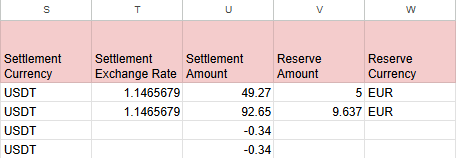
Column | Description |
|---|---|
S – Settlement Currency | The currency in which the settlement is made, as specified in the contract. |
T – Settlement Exchange Rate | Exchange rate from fee currency to settlement currency. |
U – Settlement Amount | Settlement amount in settlement currency, after all deductions. |
V – Reserve Amount | The amount withheld from settlement as a reserve, per the merchant contract. |
W – Reserve Currency | The currency in which the reserve is held. |
Note
Reserves are deducted from the available balance on the billing date. The reserve exchange rate is not displayed in the report.
When a reserve is released, the same exchange rate used at the time of the original conversion is applied.
Fee-only rows (such as Payment Authorization) may show a negative Settlement Amount - this is expected, as there is no transaction amount to settle and the fee is deducted directly from the settlement.
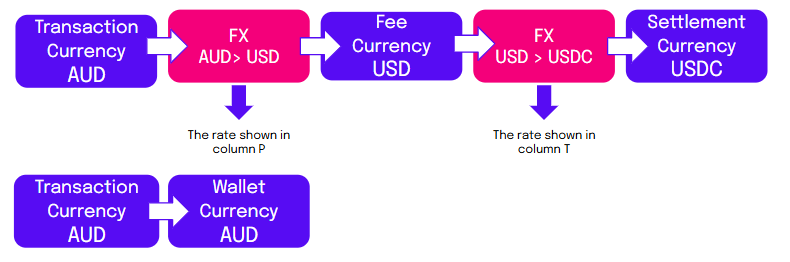
Transaction Flow Examples
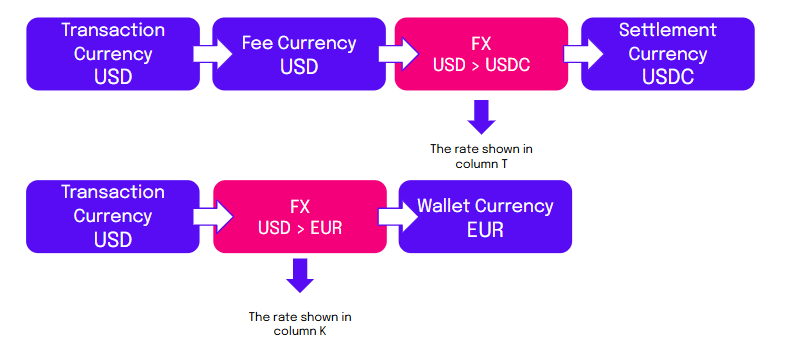
The diagrams below illustrate how FX conversions are applied across currencies at each stage of the transaction flow.
Example 1 – Same Transaction and Wallet Currency
In this example, the transaction and wallet currencies are both AUD. FX is applied only when converting to the fee currency (USD) and from fee to settlement currency (USDC).
Example 2 – Same Transaction and Fee Currency
In this example, the transaction and fee currencies are both USD. FX is applied when converting to the wallet currency (EUR) and from fee to settlement currency (USDC).
Settlement Reconciliation Process
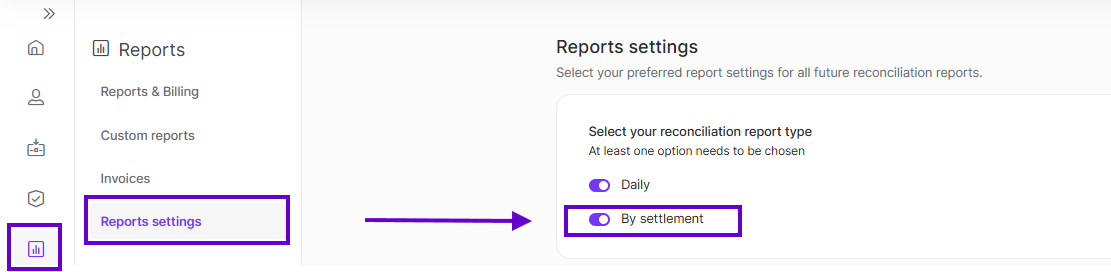
For the most accurate settlement reconciliation, use the Merchant Reconciliation by Settlement Report. Enable the By Settlement toggle in Report Settings to generate it automatically for each approved settlement.
Settlement Currency Columns (BN–BQ)
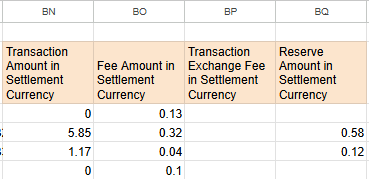
For easier reconciliation, transaction values are also provided in settlement currency in Columns BN–BQ. Use these columns when building your pivot table in a spreadsheet application.
Building the Pivot Table
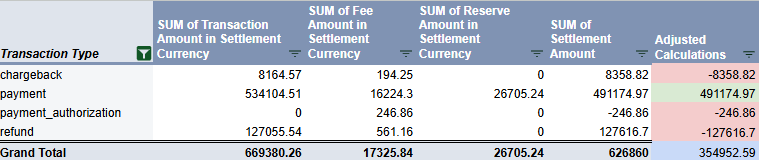
To reconcile the full settlement, create a pivot table from the report data in the spreadsheet application:
Set Transaction Type as the Row field
Add Transaction Amount in Settlement Currency as a value
Add Fee Amount in Settlement Currency as a value
Add Reserve Amount in Settlement Currency as a value
Add Settlement Amount as a value
Transaction Types to Deduct
The following transaction types must be deducted from the total payment amount when calculating the expected settlement:
Payment Authorization - already reflected as a negative Settlement Amount
Refund
Chargeback
Settlement Fee
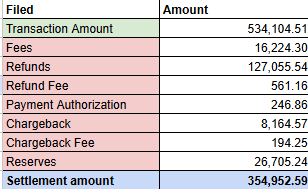
Calculation Example
The table below shows an example calculation broken down by field. Apply the following formula to verify the settlement amount:
Transaction Amount − ( Fees + Reserves + Deducted Types ) = Settlement Amount
Note
There is a daily cutoff at approximately 00:00 UTC. Transactions processed near midnight may be included in the next settlement batch.