Submitting the KYB Application
This guide covers all the features available on the Partner Portal to have you successfully add new merchants. It begins from the creation of the merchant to the successful submission of the Know Your Business (KYB) application.
Adding the Relevant Team
Once you have access to the Partner Portal, as an owner you can add your team to the Portal:
Navigate to Settings > Team members & Roles > Invite member:

Permissions
When inviting a new member to the portal, it is important that you grant them all the necessary permissions. You may choose from an existing role, but it is advised to create a custom role to fully control the granted permissions.
To create a new role:
Navigate to Settings > Team members & Roles > Roles > Create New Role:

Fully equip the team that handles the KYB cases by verifying that the following permissions are enabled in the custom role:
General -
Compliance - Set to Edit
Support Center - Set to Create
Merchants -
Merchant Overview - Set to View
Invite Merchant Users - Set to Create
Merchant KYB - Set to Edit
Merchants - Set to Create
Adding a New Merchant
To create a new merchant on Rapyd Platform:
Navigate to Merchants > Submit Merchant
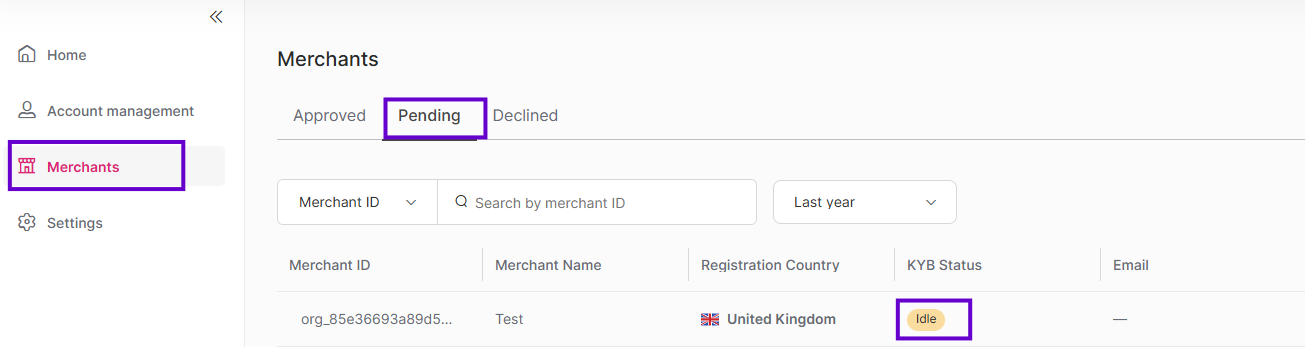
Once the merchant application is submitted, its settings will be under the Pending tab of the Merchants section. The KYB status for the merchant will initially be Idle.
Merchant KYB Status Breakdown
Idle - The status has not been evaluated yet (New).
Submitted - The KYB application was successfully submitted.
In Review - The application is being reviewed by Rapyd's Compliance team.
Approved - Application was successfully approved.
Declined - Application was declined by Rapyd.
Complete the KYB Application
After you have created a new merchant, you will need to submit their KYB application to initiate the approval process. There are two methods to access the KYB application form:
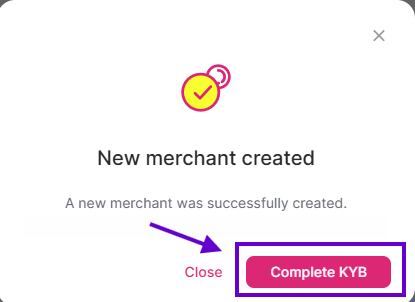
A popup window opens that enables you to start filling out the KYB application. Click the Complete KYB button.
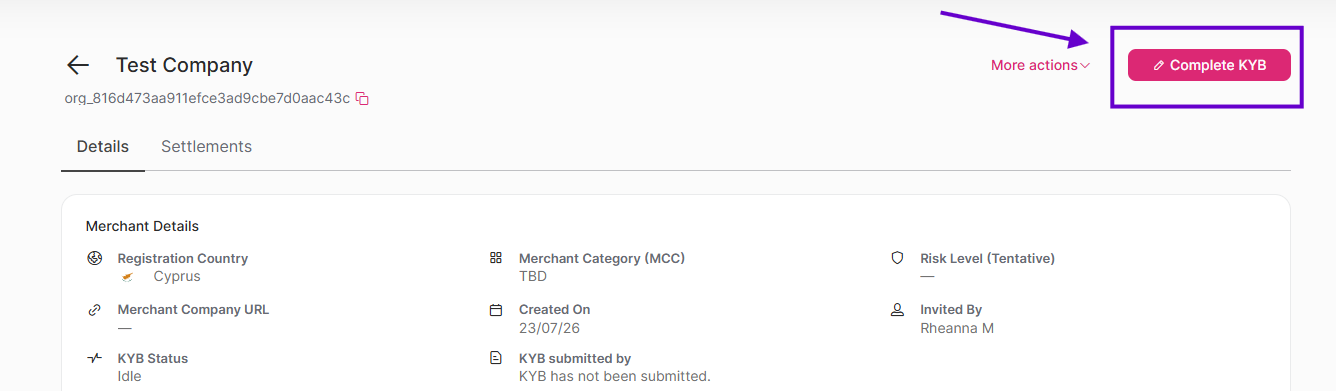
Alternatively you can navigate to Merchants > Pending > and then click the relevant merchant and then click the Complete KYB button.
Filling Out the KYB Application Form
To start filling out the application you are required to initially enter the basic details about the merchant:
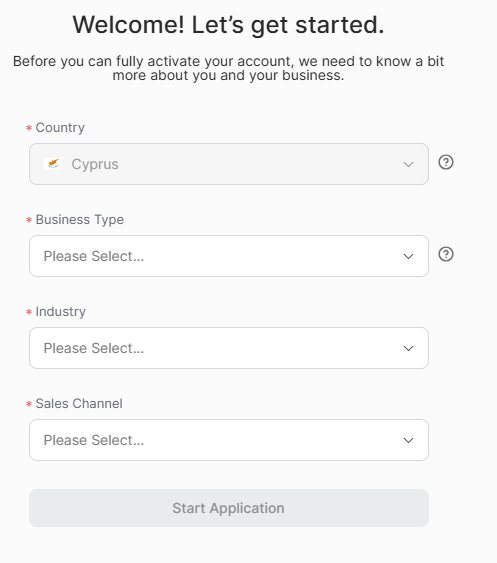
Click the Start Application button.
You will then be redirected to the main KYB application sections where the relevant fields and documents are added.
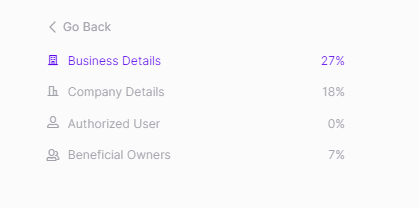
The Application is divided into four sections:
Business Details - Business-related information section.
Company Details - Company-related information section.
Authorized User - Information on the authorized user or agent who is submitting the information on behalf of the company.
Beneficial Owners - Section on all major owners of the organization.
Note
A percentage of completion indication is displayed on the right side of each section. In order to submit the KYB application, you will need to verify that each section was completely filled out (100%).
It is highly recommended to reach out to your sales manager for the following:
Obtain the updated questionnaire document that is required in the Business Details section.
Ensure that all the required supporting documents for the Company Details section are attached.
Once the application is completed, click the Submit button. The KYB status for the merchant will change to Submitted.
Accessing the Communication Center
Our internal compliance teams will be communicating with you via the Communication Center to review the KYB applications that were submitted by you.
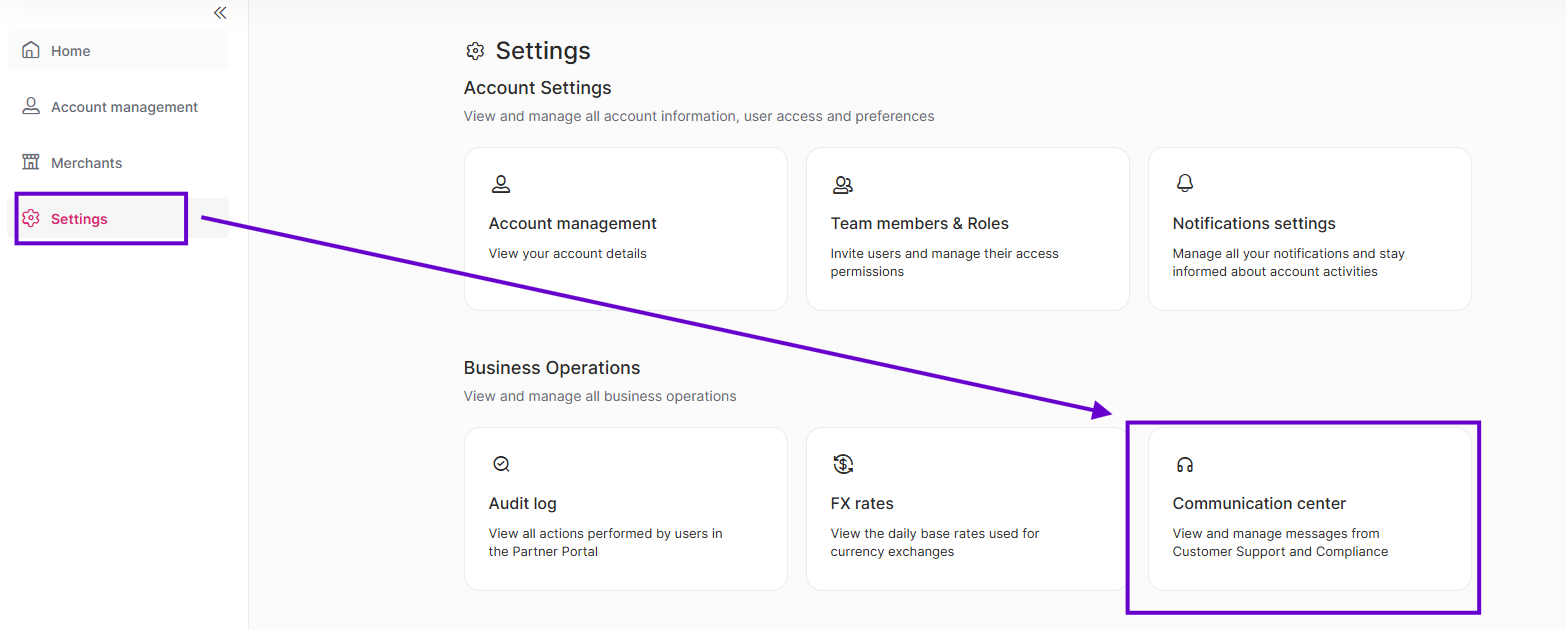
Navigate to Settings > Communication center
Alternatively, click the question mark (?) button that is located at the top right corner of the screen.
Note
This button is available from any screen of the portal.
Communication Center Sections
The communication center is divided into two sections:
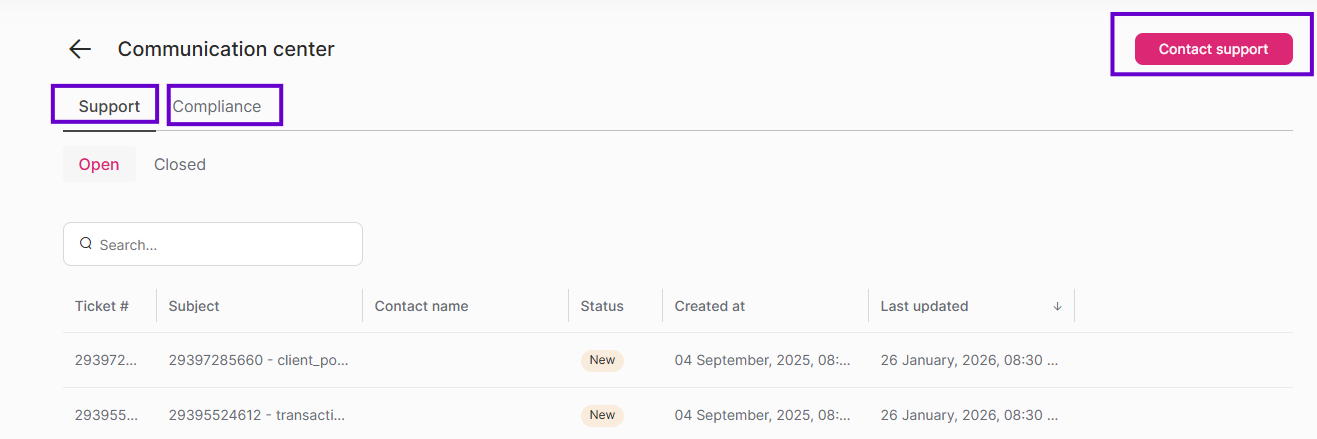
Support - You can directly submit tickets to Support from the center by clicking the Contact Support button.
Compliance - These are cases initiated by the Rapyd internal compliance teams that enable you to review each case that was assigned to you and reply to questions.