Visualización de las transacciones de comercios
Vea un libro mayor consolidado de las transacciones de todos los comercios que administra desde una sola pestaña en el Portal de Socios, sin necesidad de iniciar sesión en cada cuenta de comercio de forma individual.
Libro mayor consolidado - vea todas las transacciones procesadas de los comercios que administra en una sola pestaña, ordenadas de la más reciente a la más antigua.
Buscar - busque una transacción específica por UUID de transacción, ARN, nombre del comercio o ID de referencia del comercio.
Filtros - refine la tabla por uno o más valores de campo, incluidos ARN, código de autorización, nombre del comercio, monto pagado, moneda pagada e ID de pago.
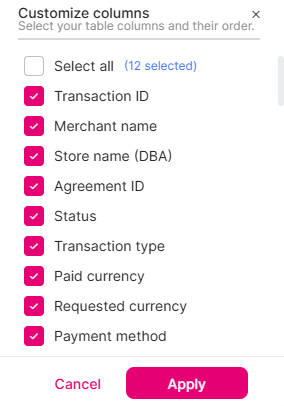
Personalizar columnas - muestre, oculte y reordene las columnas disponibles; el diseño se guarda en su perfil de usuario y se conserva la próxima vez que inicie sesión.
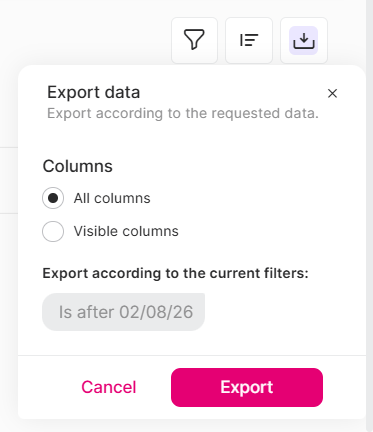
Exportar - descargue un CSV de las transacciones que coinciden con su búsqueda y filtros actuales, con todas las columnas o solo las columnas visibles.
Inicie sesión como se describe en Iniciar sesión en el Portal de Socios y vaya a la pestaña Transacciones. Aparece la pestaña Transacciones, que muestra las transacciones de toda su cartera de comercios en orden cronológico.
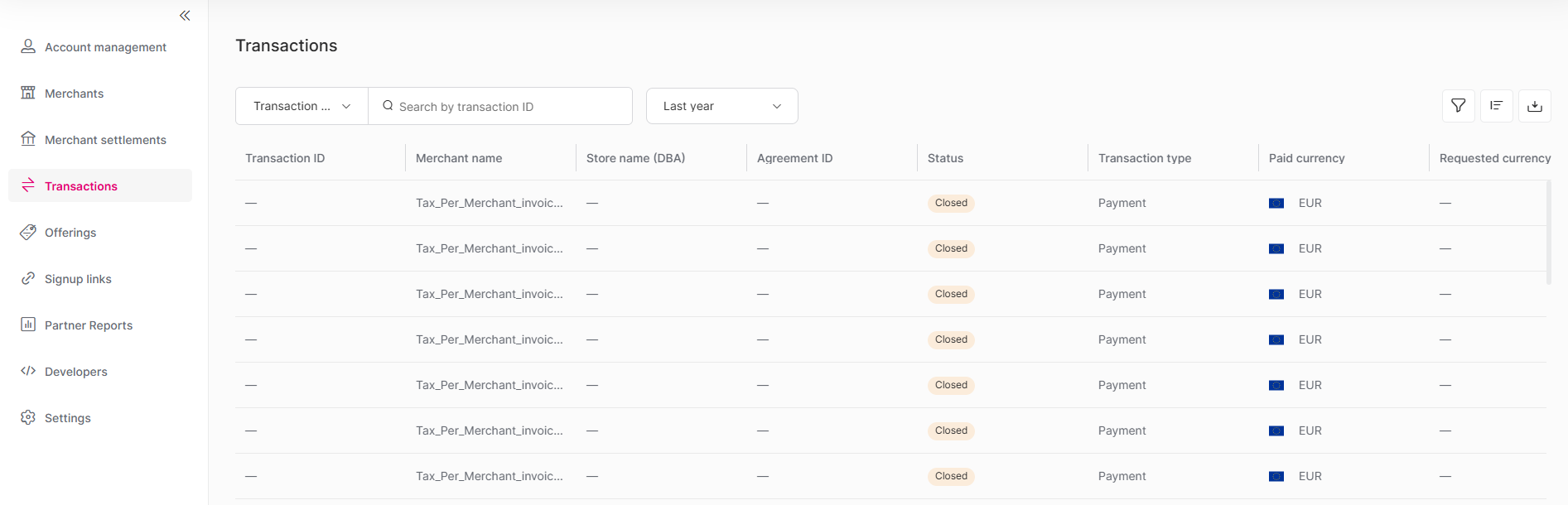
Haga clic en el menú desplegable en la parte superior de la pestaña y seleccione el campo por el que desea buscar:
UUID de transacción
ARN
Nombre del comercio
ID de referencia del comercio
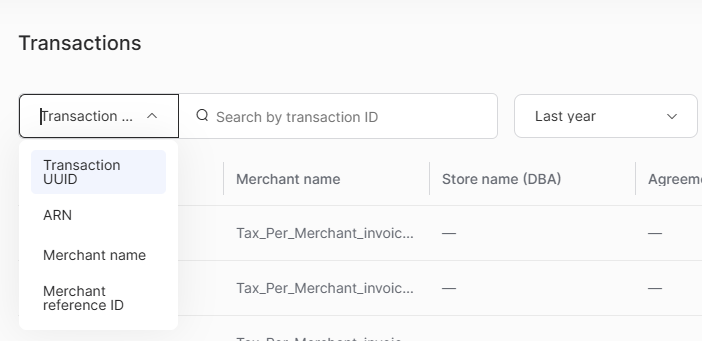
Escriba un valor en el campo Buscar y presione Entrar para aplicarlo.
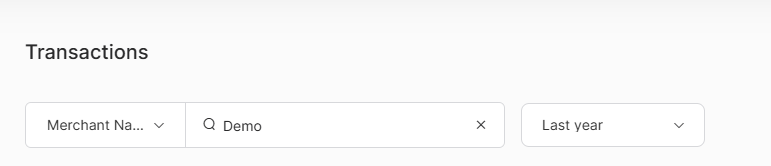
Nota
También tiene la opción de seleccionar un período de tiempo para la búsqueda.
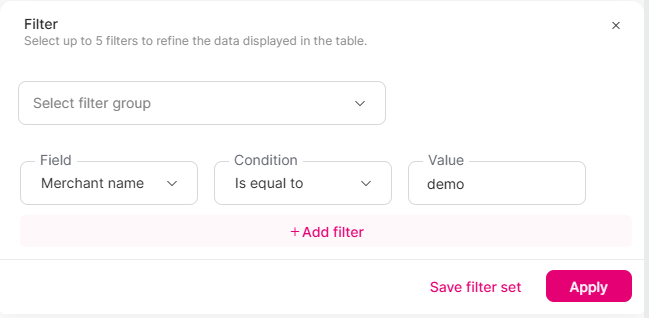
En el panel Filtro, cree una o más reglas de filtro para refinar los datos que se muestran en la tabla. Puede aplicar hasta 5 reglas de filtro a la vez.
Seleccionar grupo de filtros - seleccione un conjunto de filtros guardado previamente para aplicarlos todos a la vez.
Campo - seleccione la columna por la que desea filtrar, como ARN, Código de autorización, Nombre del comercio, ID de referencia del comercio, Monto pagado, Moneda pagada o ID de pago.
Condición - elija cómo se compara el campo: Es igual a, No es igual a, Contiene, No contiene o No está vacío.
Valor - ingrese el valor con el que se hará la comparación. Este campo no es obligatorio cuando la condición es No está vacío.
+ Agregar filtro - agregue otra regla. Varias reglas se combinan con Y, por lo que una fila se muestra solo cuando cumple todas las reglas.
Icono Papelera - elimine una regla.
Guardar conjunto de filtros - almacene los filtros actuales como un grupo reutilizable.
Aplicar - filtre la tabla usando las reglas actuales.
Haga clic en el icono Personalizar columnas para mostrar, ocultar o reordenar cualquiera de las columnas disponibles. El diseño de sus columnas se guarda en su perfil de usuario y se conserva la próxima vez que inicie sesión.
Haga clic en el icono Exportar y seleccione Todas las columnas o Columnas visibles para descargar un CSV de las transacciones que coinciden con su búsqueda y filtros actuales.
En la siguiente tabla se describen los campos disponibles en la pestaña Transacciones. Los campos se pueden mostrar, ocultar y reordenar mediante la opción Personalizar columnas.
Campo | Descripción |
|---|---|
Autenticada con 3DS | Indica si se completó la autenticación 3D Secure para la transacción. |
ID de acuerdo | El identificador del acuerdo asociado con la transacción, si corresponde. |
ARN | El Número de Referencia del Adquirente (ARN) asignado a la transacción, si corresponde. |
Código de autorización | El código de autorización devuelto por el emisor tras la aprobación. |
Autorizada el | La fecha y hora en que se autorizó la transacción. |
Dirección de facturación | La dirección de facturación asociada con el pago. |
Capturada | Indica si la transacción se capturó. |
Franquicia | La franquicia de tarjeta utilizada, por ejemplo, Visa o Mastercard. |
Tipo de tarjeta | El tipo de tarjeta utilizada, por ejemplo, Crédito o Débito. |
Monto del tarjetahabiente | El monto de la transacción en la moneda de facturación del tarjetahabiente. |
País del tarjetahabiente | El país asociado con la tarjeta del tarjetahabiente. |
Moneda del tarjetahabiente | La moneda de facturación del tarjetahabiente. |
Nombre del tarjetahabiente | El nombre del tarjetahabiente tal como aparece en la tarjeta. |
Creada el | La fecha y hora en que se creó la transacción. |
ID de cliente | El identificador del cliente asociado con la transacción. |
Descripción | Una descripción de la transacción, si se proporciona. |
Alias del eWallet | El alias o nombre para mostrar del eWallet utilizado, si corresponde. |
ID del eWallet | El identificador del eWallet utilizado para la transacción, si corresponde. |
Motivo de la falla | El motivo por el que falló la transacción, si corresponde. |
Comisiones | Las comisiones aplicadas a la transacción. |
Fecha de reporte de fraude | La fecha en que se presentó un reporte de fraude contra la transacción, si corresponde. |
Tipo de fraude | El tipo de indicador de fraude asociado con la transacción, si corresponde. |
Intercambio | La comisión de intercambio cobrada por el banco emisor. |
Últimos 4 dígitos | Los últimos cuatro dígitos de la tarjeta utilizada para la transacción. |
Nombre del comercio | El nombre del comercio. |
ID de referencia del comercio | Un identificador de referencia adicional proporcionado por el comercio y asociado con la transacción, si corresponde. |
Ingresos del comercio | Los ingresos netos recibidos por el comercio por la transacción. |
Indicador de fraude de la red | Una señal de fraude devuelta por la red de tarjetas, si corresponde. |
Número de cuotas | El número de cuotas seleccionadas para la transacción, si corresponde. |
Monto pagado | El monto pagado en la moneda pagada. |
Pagada el | La fecha y hora en que se pagó la transacción. |
Moneda pagada | La moneda en la que se pagó la transacción. |
Correo electrónico del pagador | La dirección de correo electrónico del pagador. |
Nombre del pagador | El nombre de la persona que realizó el pago. |
Teléfono del pagador | El número de teléfono del pagador. |
Canal de pago | El canal a través del cual se realizó el pago, por ejemplo, En línea o En tienda. |
ID de pago | El identificador del pago asociado con la transacción. |
Método de pago | El método de pago utilizado para la transacción, por ejemplo, Tarjeta. |
ID de terminal física | El identificador de la terminal física utilizada para la transacción, si corresponde. |
Código de motivo | El código de motivo de rechazo o error devuelto por el emisor o la red, si corresponde. |
Reembolsada | Indica si la transacción fue reembolsada. |
Monto reembolsado | El monto reembolsado por la transacción, si corresponde. |
Moneda reembolsada | La moneda del monto reembolsado. |
Monto solicitado | El monto original solicitado para la transacción. |
Moneda solicitada | La moneda en la que se solicitó originalmente la transacción. |
Comisión de franquicia | La comisión cobrada por la franquicia por procesar la transacción. |
Settlement Date | The date of the settlement. |
Número de liquidación | El número de lote de liquidación en el que se incluye la transacción. |
Tipo de liquidación | Cómo se financió la liquidación, por ejemplo, Liquidación por Rapyd. |
Dirección de envío | La dirección de envío asociada con el pedido, si corresponde. |
Estado | El estado actual de la transacción. Valores posibles:
|
Nombre del establecimiento (DBA) | El nombre comercial con el que opera el comercio ("Doing Business As", DBA). |
Total de comisiones | La suma de todas las comisiones asociadas con la transacción. |
ID de transacción | El identificador único de la transacción. Haga clic en el icono de copiar junto al ID para copiarlo al portapapeles. |
ID de referencia del comercio de la transacción | El ID de referencia asignado por el comercio para la transacción. |
Tipo de transacción | El tipo de transacción, por ejemplo, Venta o Reembolso. |
UUID de transacción | El identificador único universal (UUID) de la transacción. |
Moneda del eWallet | La moneda de la cuenta eWallet. |
El acceso a Transacciones está limitado a los usuarios con el rol de Editor, Administrador de Cumplimiento, Administrador o Propietario. Los usuarios sin acceso no verán la pestaña Transacciones en la navegación, y el acceso directo mediante URL estará bloqueado.